Setup Guide
Get started with Google Customer Reviews for WooCommerce in just a few minutes. This guide will walk you through the installation and basic configuration.
Prerequisites
Before you begin, make sure you have:
- Google Merchant Center account — Create one here if you don't have one
- Products in Google Merchant Center — Your products should be listed for product-level ratings
- WooCommerce 7.0+ installed and active
- WordPress 6.0+
- Google Customer Reviews enabled in your Merchant Center (see below)
Step 1: Install the Plugin
Purchase and Download
- Go to the pricing section
- Choose your currency (USD or EUR)
- Select your license tier based on the number of sites
- Complete the purchase
- Download the plugin ZIP file from your account
Install in WordPress
- Go to Plugins → Add New in your WordPress admin
- Click Upload Plugin
- Choose the downloaded ZIP file
- Click Install Now
- After installation, click Activate Plugin
If the WordPress uploader spins forever, times out, or reports an error, the server or a firewall in front of it is usually blocking the upload. See Plugin Installation Problems for how to install the plugin via SFTP instead, and what to ask your hosting support to fix.
Step 2: Enable Google Customer Reviews in Merchant Center
Before configuring the plugin, you need to enable Google Customer Reviews in your Merchant Center:
- Log in to your Google Merchant Center account
- Click the Settings icon (gear) in the top right
- Navigate to Customer reviews (under "Programs" or "Tools")
- Click Enable to activate the Google Customer Reviews program
- Review and accept the Terms of Service
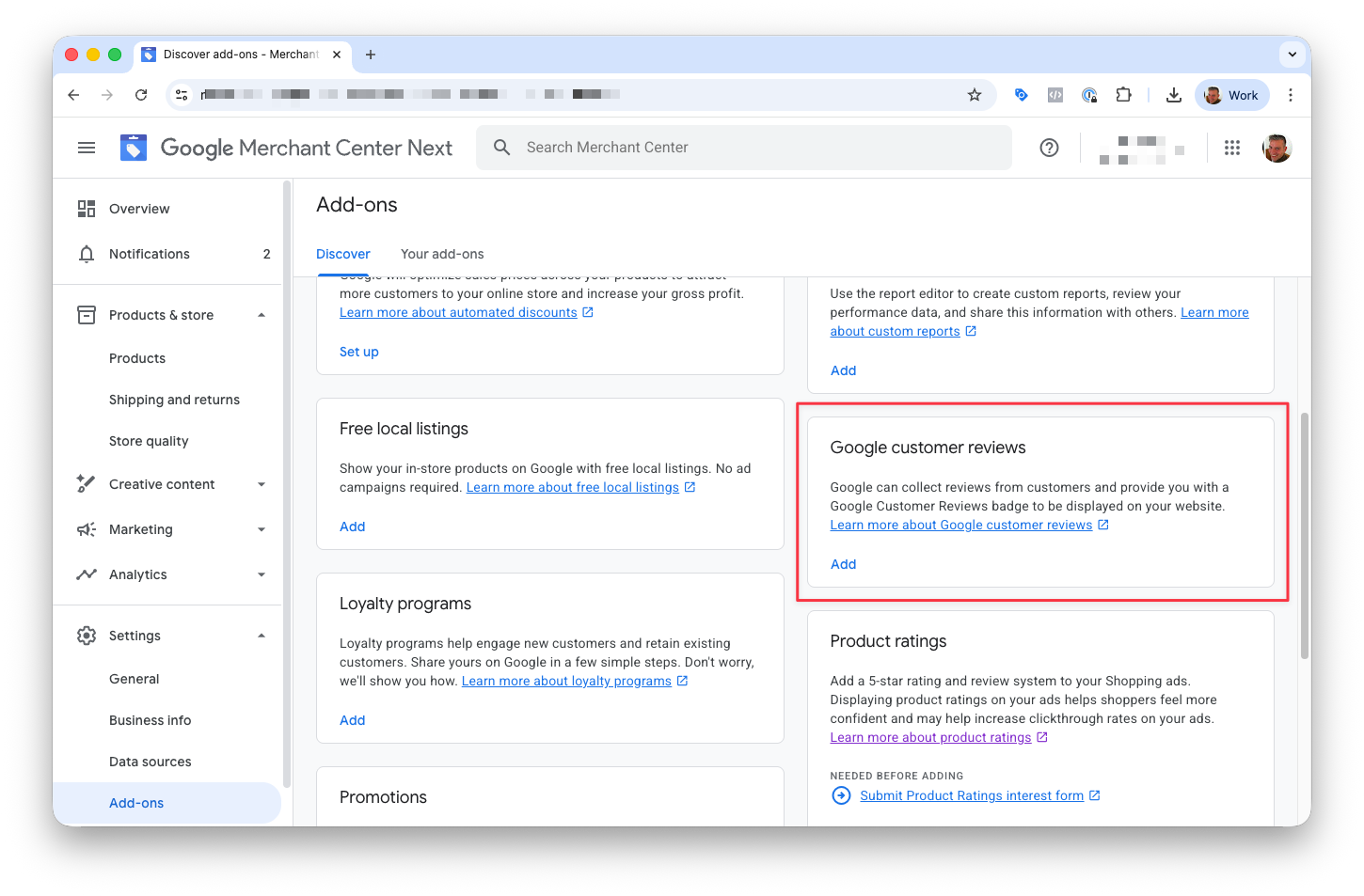
After enabling, it may take up to 24 hours for Google to activate the program for your account.
Step 3: Enter Your Merchant Center ID
- Go to WooCommerce → Settings → Google Customer Reviews (or the plugin settings page)
- Enter your Google Merchant Center ID
- Find this in your Google Merchant Center account under Settings → Account information
- Click Save Changes
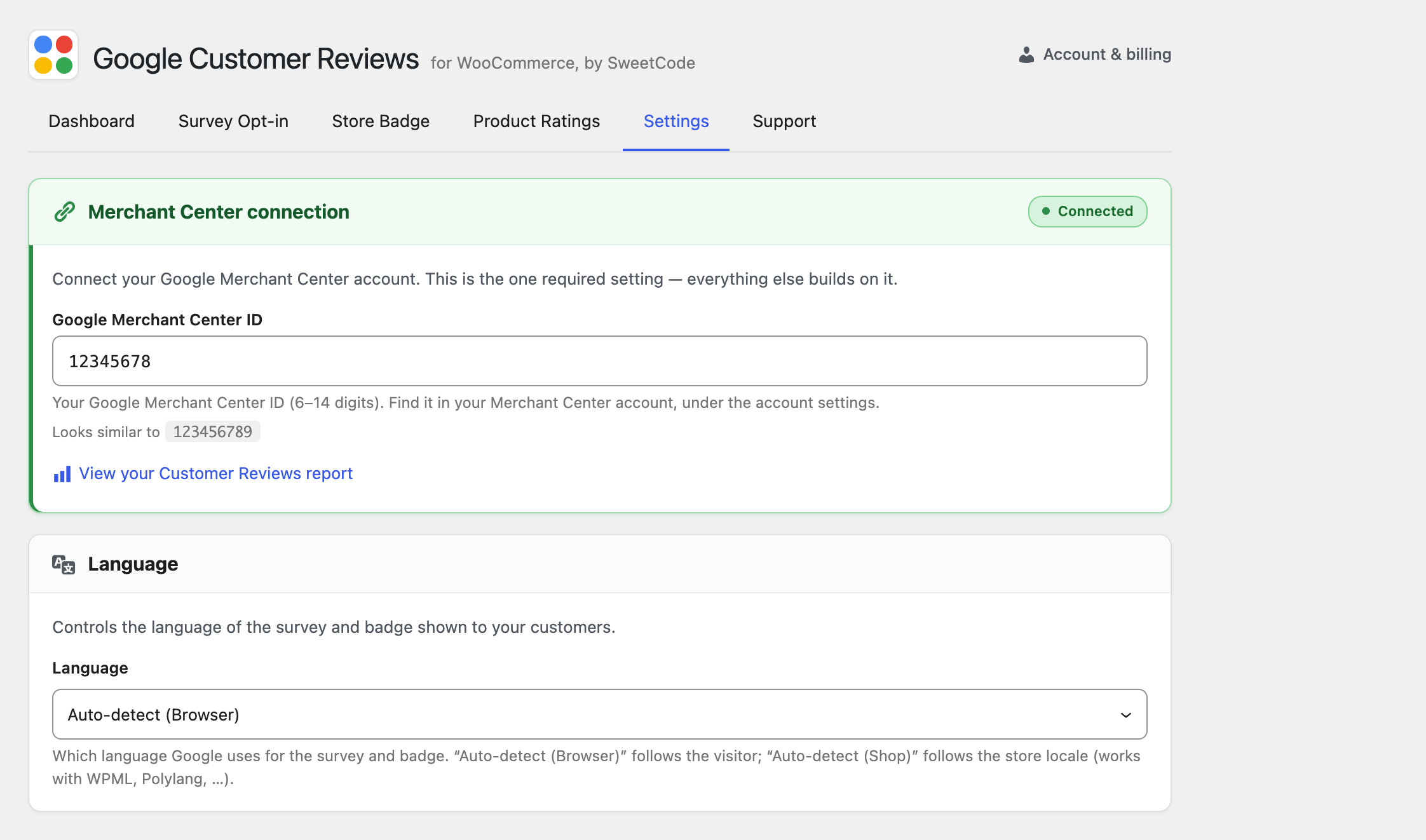
Step 4: Configure the Survey Opt-in
- Enable Survey Opt-in — Turn on the survey opt-in module
- Set Estimated Delivery Days — Configure how many days after the order the delivery is estimated (default: 7 days)
- Position — Choose where the opt-in appears on the order confirmation page
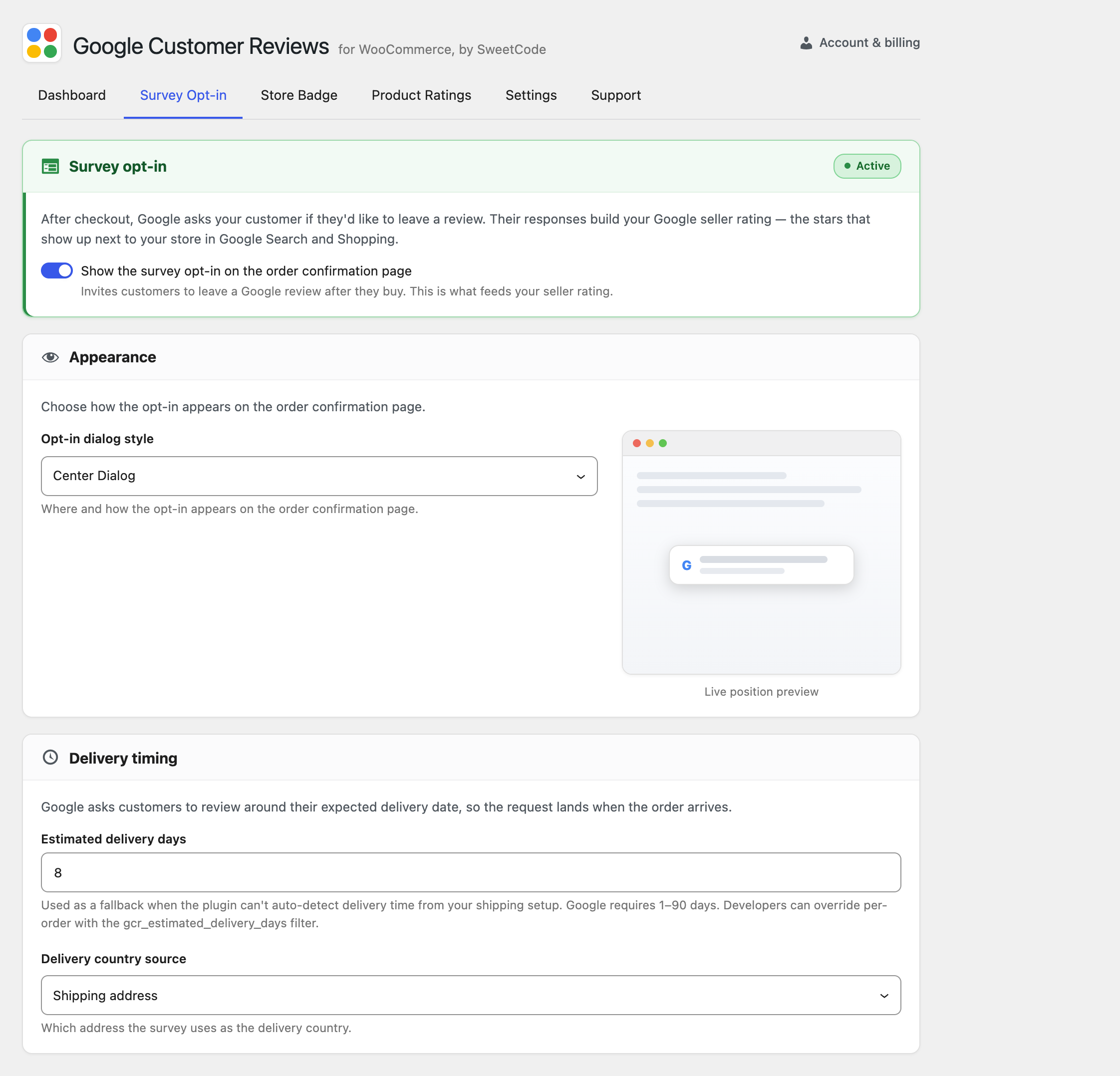
See the Survey Opt-in configuration guide for detailed options.
Step 5: Test Your Integration
- Place a test order on your store
- After completing checkout, verify the survey opt-in appears on the order confirmation page
- Check the browser console for any errors
Step 6: Enable Seller Rating Badge (Optional)
Display your seller rating on your website:
- Go to the plugin settings
- Enable the Seller Rating Badge
- Use the shortcode
[gcr_badge], the widget, or a menu item to display the badge
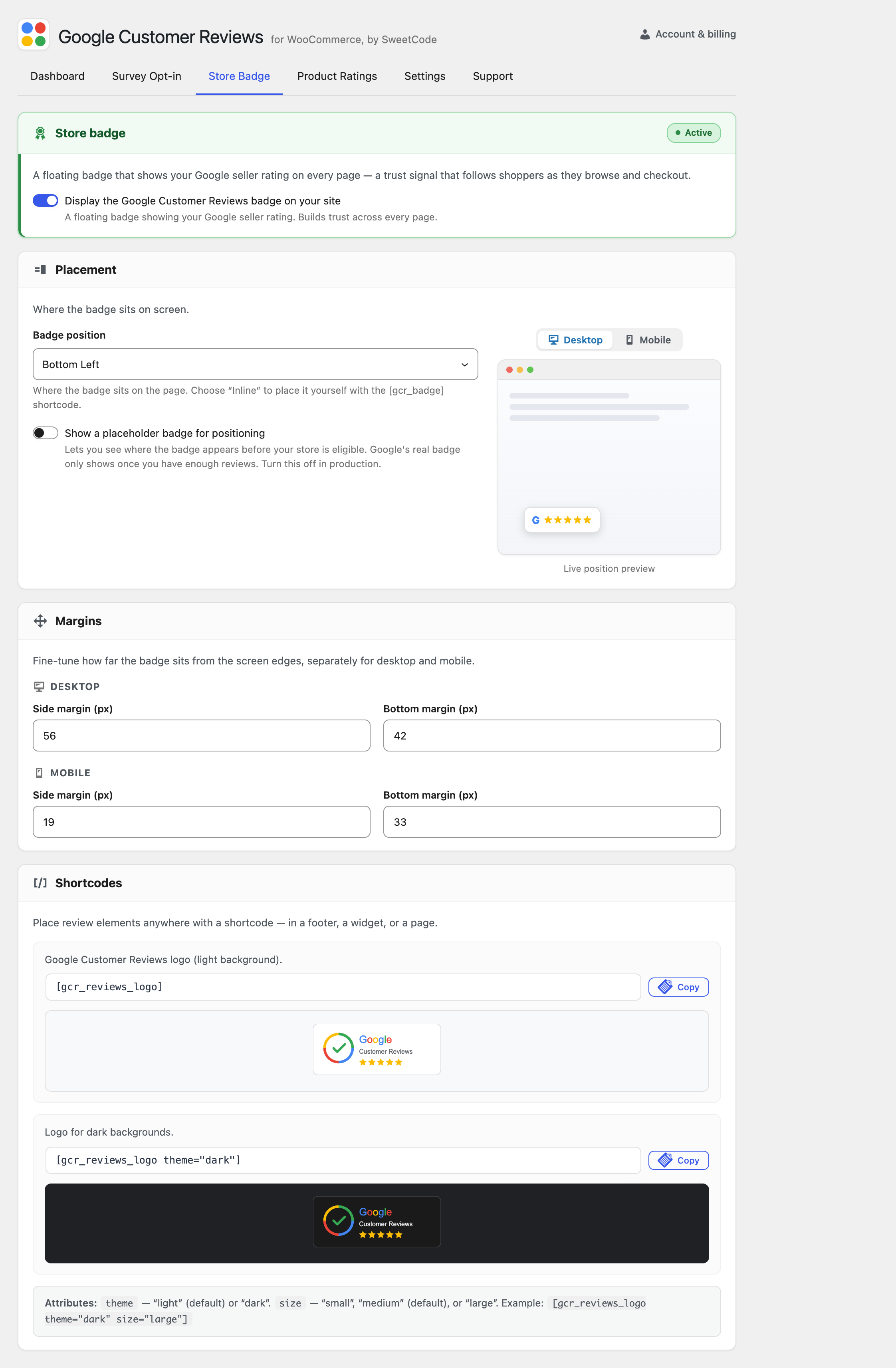
See the Seller Rating Badge guide for placement options and badge style variants.
What Happens Next?
- Customers opt in — Customers who opt in will receive a review survey from Google
- Google sends surveys — A few days after the estimated delivery date, Google emails the survey
- Reviews accumulate — As customers submit reviews, your seller rating builds
- Ratings appear — After approximately 100 reviews, your seller rating can appear in Google Search and Shopping ads
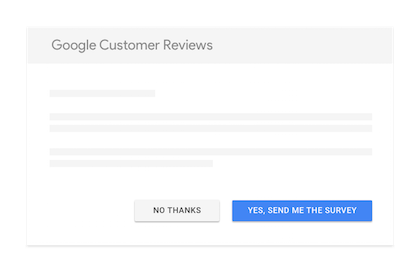
The Customer Experience
Here's what your customers will experience after opting in.
It takes time to collect enough reviews for your seller rating to appear in ads. Google typically requires around 100 reviews before displaying seller ratings. Continue to encourage customers to opt in and the reviews will accumulate over time.
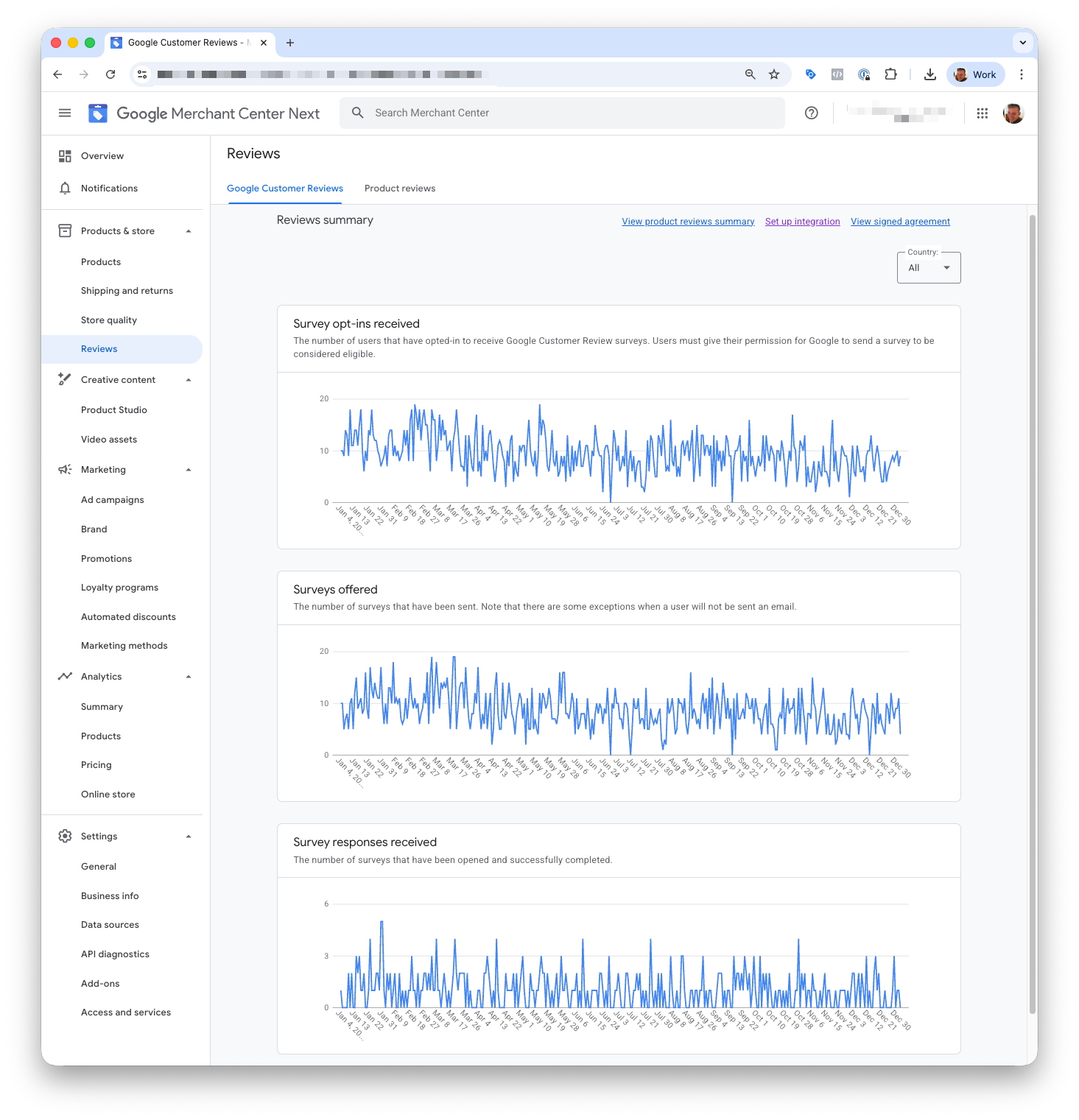
Viewing Your Reviews in Merchant Center
Once you start collecting reviews, you can track your progress in Google Merchant Center:
- Go to your Google Merchant Center account
- Navigate to Growth → Customer reviews (or Programs → Customer reviews)
- View your seller rating, review count, and trends
Need Help?
- Check our FAQ for common questions
- Visit Troubleshooting for common issues
- Contact support if you need assistance

