Seller Rating Badge
Display your Google seller rating badge anywhere on your website to build trust with potential customers. The badge shows your star rating and review count, linking to your Google Customer Reviews profile.

How It Works
Once you've collected enough reviews through Google Customer Reviews, you can display a badge showing your seller rating. The badge:
- Shows your star rating (1-5 stars)
- Displays the number of reviews
- Links to your Google Customer Reviews profile
- Updates automatically as you collect more reviews
- Available in light and dark variants to match your site's design
The badge will only display if you have a seller rating. This typically requires approximately 100 reviews collected through Google Customer Reviews.
Enabling the Badge
- Go to the plugin settings in WooCommerce → Settings → Google Customer Reviews
- Find the Seller Rating Badge section
- Toggle Enable Badge to on
- Configure the badge options (see below)
- Save changes
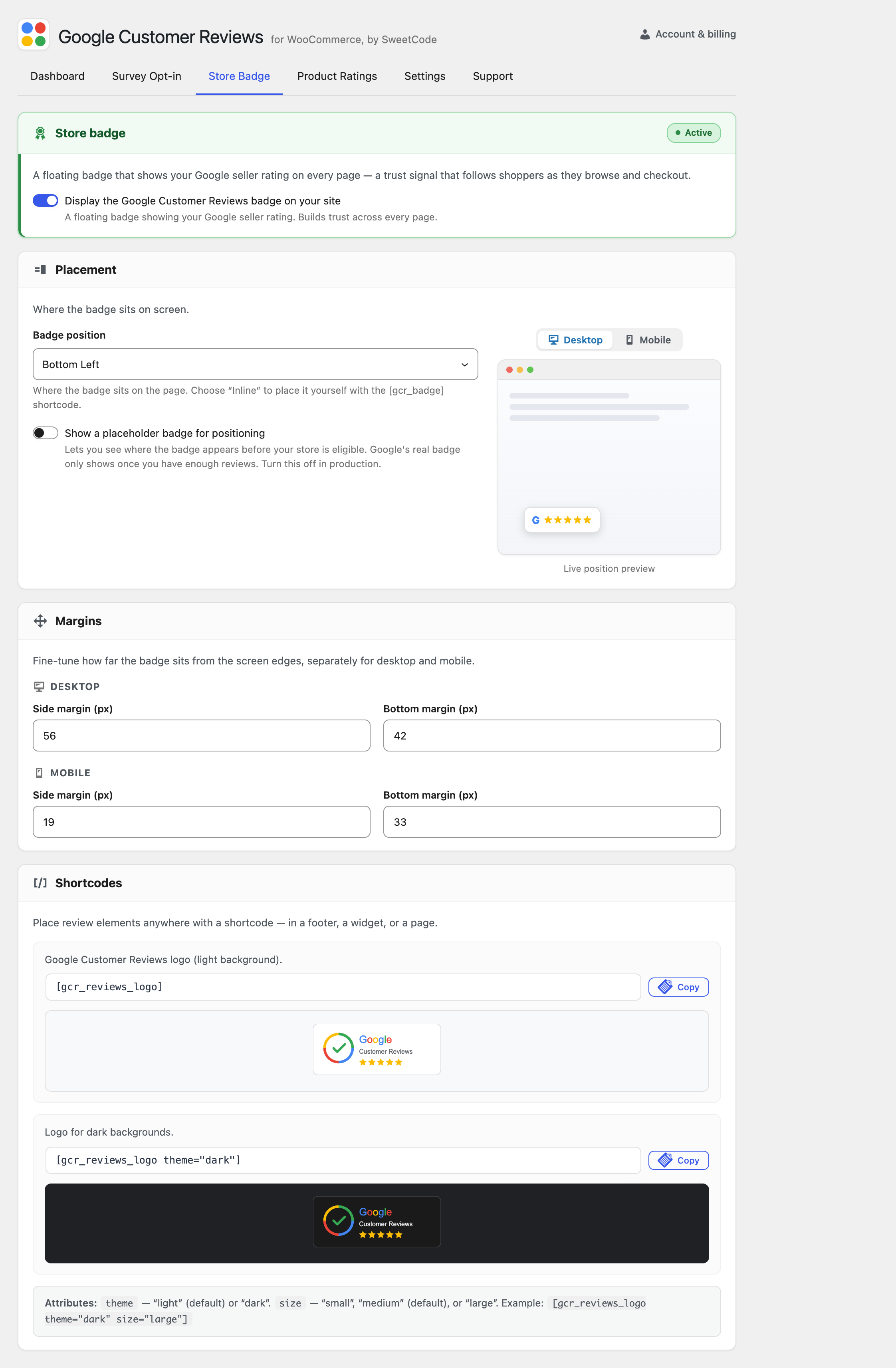
Display Options
Using a Shortcode
Place the badge anywhere using the shortcode:
[gcr_badge]
With parameters:
[gcr_badge position="BOTTOM_RIGHT" language="en"]
Available Parameters
| Parameter | Values | Default | Description |
|---|---|---|---|
position | BOTTOM_RIGHT, BOTTOM_LEFT, INLINE | BOTTOM_RIGHT | Badge position |
language | en, de, fr, etc. | Auto-detect | Badge language |
Using a Widget
- Go to Appearance → Widgets
- Find the GCR Seller Rating Badge widget
- Drag it to your desired widget area
- Configure the options
- Save
Using a Menu
You can add the badge to any navigation menu:
- Go to Appearance → Menus
- Select the menu you want to edit
- Under Custom Links, add the badge shortcode as a menu item:
- URL:
# - Link Text:
[gcr_badge position="INLINE"]
- URL:
- Save the menu
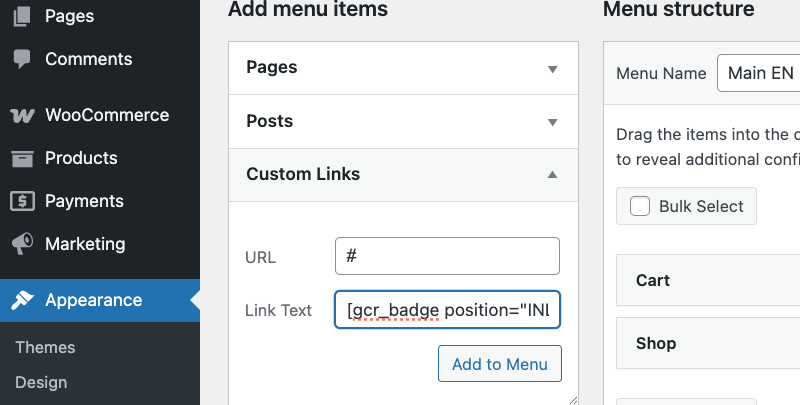
Menu integration works best with the INLINE position. The badge will render inline with your menu items.
Using PHP
For theme developers, you can display the badge programmatically:
<?php
if (function_exists('gcr_display_badge')) {
    gcr_display_badge([
        'position' => 'INLINE',
        'language' => 'en'
    ]);
}
?>
Position Options
BOTTOM_RIGHT (Default)
The badge appears as a floating element in the bottom-right corner of the page. This is the most common placement.
BOTTOM_LEFT
The badge appears as a floating element in the bottom-left corner of the page.
INLINE
The badge appears inline where you place the shortcode or widget. Use this for placing the badge within your page content, footer, or sidebar.
Badge Style Variants
The badge automatically adapts to your site's design, but you can also choose between light and dark variants:
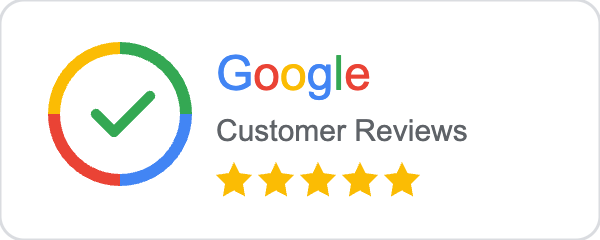
Light Background Badge
Best for sites with light-colored backgrounds (white, light gray, etc.).
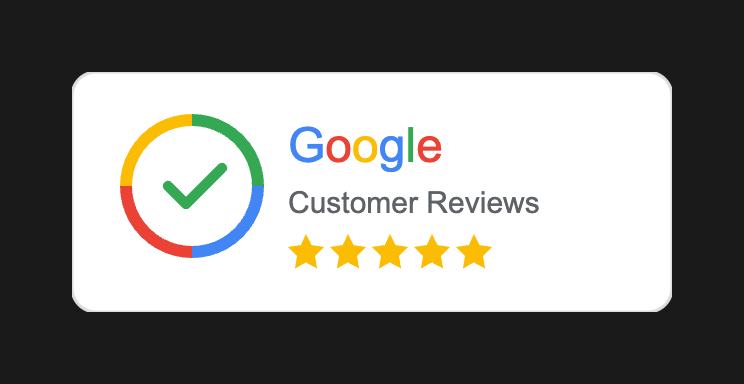
Dark Background Badge
Best for sites with dark-colored backgrounds (black, dark gray, dark blue, etc.).
Mobile Display
The badge is fully responsive and displays properly on mobile devices:
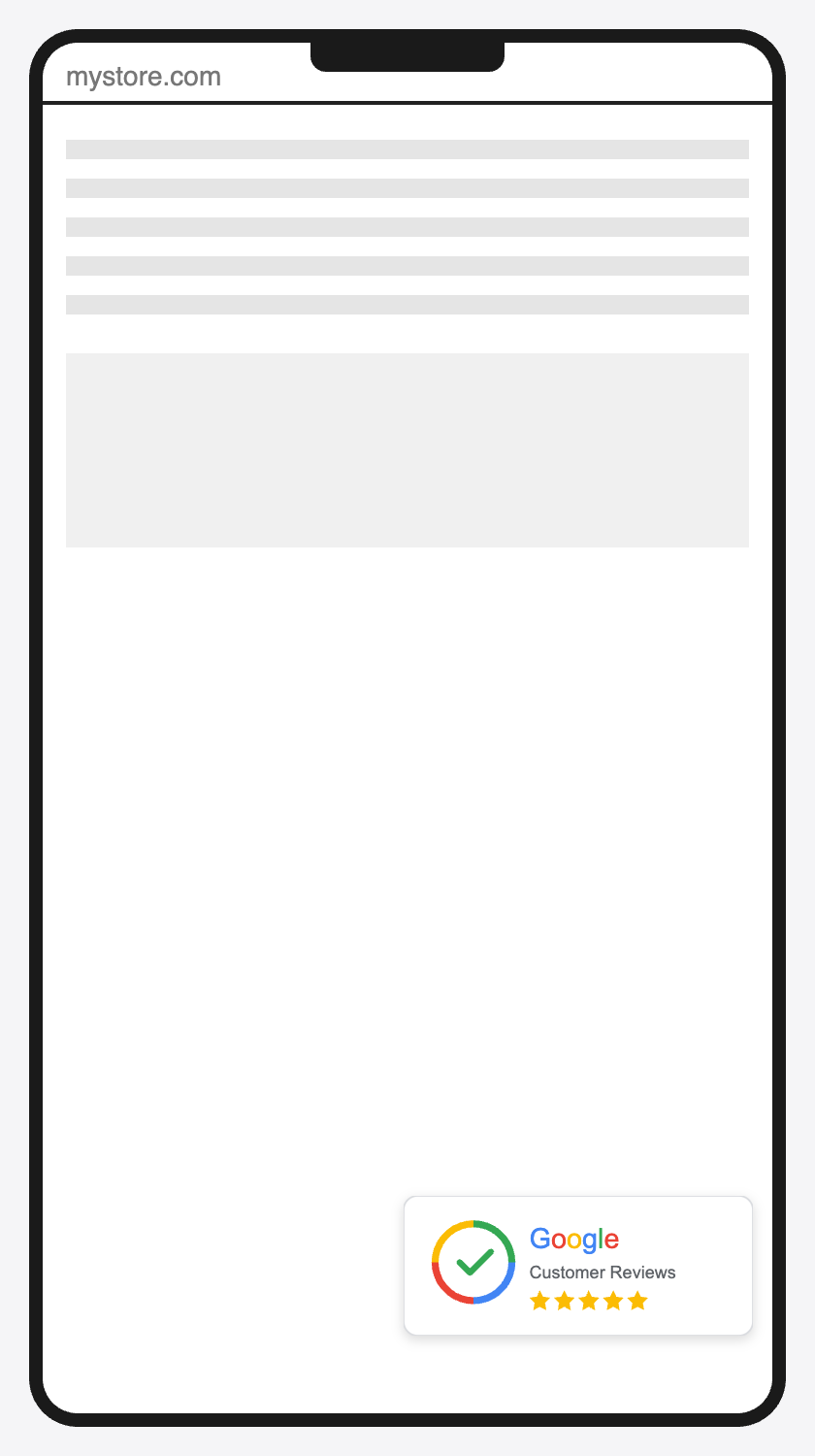
For floating badges (BOTTOM_RIGHT or BOTTOM_LEFT), the badge automatically adjusts its position and size on smaller screens.
Styling the Badge
CSS Classes
The badge container has the following CSS class for styling:
.gcr-badge-container {
  /* Your custom styles */
}

/* For inline badges */
.gcr-badge-container.gcr-badge-inline {
  margin: 20px 0;
}

/* For floating badges */
.gcr-badge-container.gcr-badge-floating {
  z-index: 9999;
}
Hiding on Specific Pages
To hide the floating badge on specific pages:
/* Hide on cart page */
.woocommerce-cart .gcr-badge-container.gcr-badge-floating {
  display: none;
}
Or use PHP:
add_filter('gcr_show_badge', function($show) {
    if (is_cart() || is_checkout()) {
        return false;
    }
    return $show;
});
Best Practices
- Place where visible — Put the badge where customers will see it, such as the footer, sidebar, or product pages
- Don't overdo it — One or two badge placements is enough; too many can look spammy
- Wait for reviews — Don't enable the badge until you have enough reviews for a rating to display
Troubleshooting
Badge not appearing
- Verify you have enough reviews for a seller rating (approximately 100)
- Check that the badge is enabled in settings
- Verify your Merchant Center ID is correct
- Clear any page caches
Badge shows wrong rating
The badge pulls data directly from Google. If the rating seems wrong:
- Check your Google Merchant Center for the correct rating
- Clear your browser cache
- Wait a few hours for Google's cache to update
See the Troubleshooting guide for more solutions.

