Troubleshooting
First Step: Use the Console Logger
Before troubleshooting manually, enable the Console Logger to see exactly what's happening with your tracking:
- Add
?pmwloggeronto your page URL - Open browser DevTools (F12) → Console tab
- Look for Pixel Manager output showing events, pixel calls, and errors
The Console Logger will immediately show you:
- ✅ Which events are firing (or not firing)
- ✅ What data is being sent to each pixel
- ✅ Consent status and script loading issues
- ✅ Detailed error messages
Complete Console Logger Guide →
General
Where can I report a bug or suggest improvements?
Please post your problem in the WordPress support forum for this plugin: Support forum
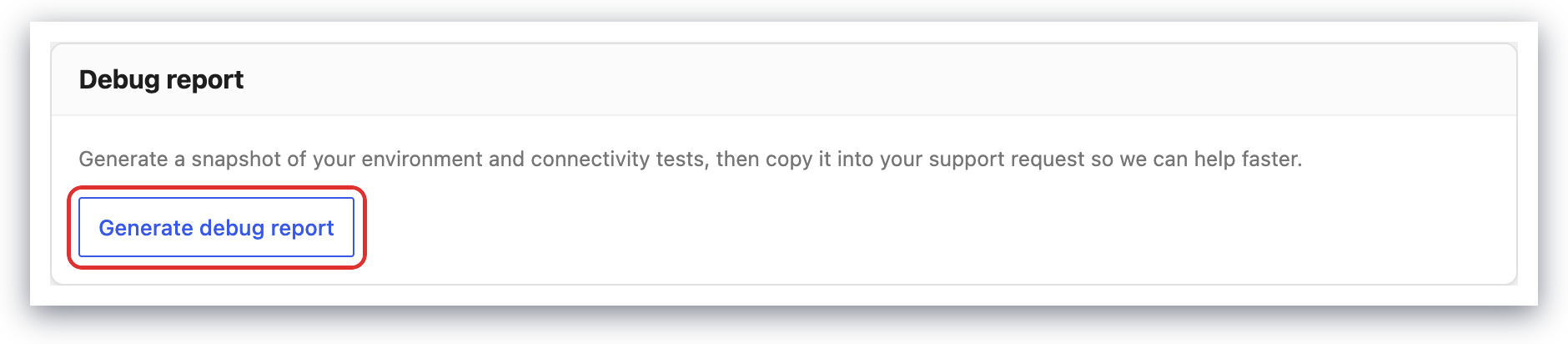
Alternatively, you can send a request to [email protected]. If you do, in the Pixel Manager open Support → Debug report, click Generate debug report, then copy and paste it into the email.
The most common issues in case the pixels don't work
- Caching: If you run some caching layer, the server might still serve cached versions of the pages. You will need to delete the cache.
- Minification, combination, and concatenation: Some minification and combination plugins mangle up the injected JavaScript code to an extent, that the tracking pixels stop working. You will need to turn minification, combination, and concatenation off and try again.
If you need the exact scripts, paths and endpoints to exclude in your caching or optimization plugin, see Caching and Optimization Exclusions.
If only some events are missing while others still work, the cause is usually more specific than the two above. For the Meta pixel in particular, if PageView arrives but AddToCart, InitiateCheckout and Purchase never do, see Meta silently drops AddToCart, InitiateCheckout and Purchase (restricted business category). In that case, Meta is blocking the events and no website-side change can fix it.
Is pmw_get_cart_items slowing down my website?
Short answer: No
Long answer:
First some information on what pmw_get_cart_items is doing.
While a visitor is browsing a shop he might add some products to the cart. Each time he uses the minicart to modify his selection, by adding or removing products, we need to make sure to have all product information handy in order to send pixel events with all relevant data to Google, Meta (Facebook), etc. Unfortunately, it is not possible to include this information on page load within the HTML code, because caching mechanisms could serve outdated data to the browser. That's why we need a mechanism like
pmw_get_cart_itemsthat will fetch all the current product data for the minicart from the server.
And now to the question if pmw_get_cart_items is slowing down the website.
Some users have noticed in the network tab of their browsers that the pmw_get_cart_items call adds one more request, which on slow servers can take even more than a second to fulfill. It is using the standard WordPress Ajax function to fetch the product data.
But is this not slowing down the website?
The pmw_get_cart_items call happens after the browser has signaled the load event, which happens after all content has already been successfully loaded.
The load event is fired when the whole page has loaded, including all dependent resources such as stylesheets and images.
Reference: Mozilla MDN Web Docs
PageSpeed measures the loading time of your page starting from the initial request to when the last embedded resource (JS, CSS, images, etc.) has finished loading. So that’s essentially when $(window).load() is triggered.
Reference: Lèse Majesté's answer on Stackoverflow
So the pmw_get_cart_items doesn’t slow down the download or rendering of a WooCommerce shop in any way.
My theme shows a script code on the front end that shouldn't be there
The Pixel Manager uses a script output to track products in a way that works with every caching system.
It outputs that code wrapped in a <script></script> tags which is fully compliant HTML code.
Because the code is wrapped in <script></script> tags the theme should ignore the code and not output it visibly to the front end.
There is nothing we can do from our side. You have to ask the theme developer to update the theme to ignore all code that’s wrapped in <script></script> tags.
Elementor Related Products and Upsell Products Widgets
This has been fixed in version 3.9.0 of Elementor Pro. Please update to that version (or higher).
In its current version the Elementor Related Product and Upsell Product Widgets don't properly process the <script> output created by the Pixel Manager for WooCommerce. It should be hidden and not visible. This is an issue that only can be fixed by the creators of the Elementor Related Products and Upsell Product Widgets as described in the following troubleshooting article.
Luckily there is a workaround for users of the Elementor Related Products Widget. Instead of using the built-in Elementor Related Products Widget, you can use the shortcode [related_products limit="X"]
Similarly, for replacing the Elementor Upsell Products Widget you can use this code published by bekarice: https://gist.github.com/bekarice/a3305c18d32b4de9d8b7
We already have placed a bug report on Elementor's GitHub issue tracker: https://github.com/elementor/elementor/issues/16934
The bug report shows another way for the users to fix the problem, enabling them to keep using the Elementor widgets. But it can't persist over Elementor updates, so you need to keep updating this with every Elementor update. Use it at your own risk.
We'd recommend that you give the issue a thumbs up or add your own comment so that the Elementor developers see how frequently that problem happens and increase the priority of that issue.
We're in direct contact with Elementor, but at the moment we can't say for sure if and when they are going to fix this on their end.
The Purchase Confirmation Page Doesn't Load and Shows a Blank Page
If a blank page shows up when trying to load the purchase confirmation page the reason is typically too low allocated memory. The Pixel Manager runs a few queries on the purchase confirmation page which use more memory than on other pages. If in the shop configuration the memory limit is too low, this problem can occur. The solution is simple. Increase the memory limit in your configuration.
Make sure that the memory limit is well above your maximum memory allocation.
Add one of the following lines to the configuration file wp-config.php
define('WP_MEMORY_LIMIT', '256M');
define('WP_MEMORY_LIMIT', '512M');
define('WP_MEMORY_LIMIT', '1024M');
Here's a support article on WooCommerce that also shows other ways how to increase the memory limit.
The purchase confirmation page loads very slowly when the Pixel Manager is enabled
The Pixel Manager runs a few queries on the purchase confirmation page to evaluate if the customer is a new customer or an existing customer. It also determines different types of customer lifetime values for that customer. Those queries, on some shops, can take a long time to execute.
The simplest way to fix this is to add high-performance indexes to the tables. One of our tests improved the query speed by a factor of 133!
Use the Index WP MySQL For Speed plugin to add those high-performance indexes to your shop too. It will not just help on the purchase confirmation page but on every page of your shop.
Read more about this optimization in our blog article about adding high-performance indexes.
Why I can’t verify my site on Hotjar?
The plugin configuration for Hotjar is really simple. In the Pixel Manager, open Tracking Pixels → Hotjar, paste the Site ID from Hotjar’s tracking code into the Site ID field, and you’re good to go.
However, sometimes, there will be instances where your site can’t be verified. Usually, it’s because of these things:
- Cookie Banner - make sure that you have disabled the cookie banner when verifying your site on Hotjar. This sometimes blocks the cookies coming from Hotjar as well causing it not to verify successfully
- Explicit Consent Mode - having Enable Explicit Consent Mode turned on in the Pixel Manager under Consent → Explicit consent will also not allow cookie tracking on your site. Just like the Cookie Banner, this will also cause your site’s verification to be unsuccessful
- You’re logged in while verifying - You also have to do the verification while you’re logged out on your WordPress Dashboard, so your site will be tracked.
- Server-side caching - Make sure to clear all server-side cache after each configuration so the Hotjar verifier will not load a cached version.
Duplicate jQuery library causes random issues
Problem
The theme, or a plugin, or custom code loads an additional jQuery library that overwrites the events the Pixel Manager hooks into.
WordPress for a long time was shipped with an old version of jQuery. Therefore, some theme developers or shop managers loaded an additional, newer jQuery library in the HTML source. But, if done incorrectly, this would overwrite all events a plugin like the Pixel Manager has hooked into, rendering all event listeners useless.
Luckily WordPress, since version 5.5, is shipped with the most modern jQuery library. This means the additional jQuery library can be safely removed.
Verification
- Open the development console
- Search the entire source code using OPT+CMD+F (on a Mac) for the following string:
jQuery requires a window with a document - If you get two results then the jQuery library is duplicated and is causing issues.
Solution
Remove the additional jQuery library. Keep the jQuery library that WordPress is injecting.
Render issues that show Pixel Manager JavaScript code on the front-end
In rare cases you might run into rendering issues on the front end which visibly show JavaScript code that is injected by the Pixel Manager into the page source.
This typically starts with the following line:
window.pmwDataLayer.products = window.pmwDataLayer.products || {};
There are three known cases where this problem appears.
-
The page builder or theme strips the tags out of the product cards in product grids. This is the most common case today. See Product grids that show the code as text below, which has a working fix.
-
Users of the Elementor Pro widget for related and upsell products. For them, we have an own support article with a workaround: Elementor Render Issue
-
The theme is using a front end JavaScript library which makes a mistake when rendering the code that the Pixel Manager injects into the product templates. The Pixel Manager injects the following three HTML elements into the page source:
<meta>,<input type="hidden">and<script></script>. All those HTML elements are invisible elements by definition and should not be visibly rendered. However, some JavaScript helper libraries don't account for those invisible elements and render some or all of them visibly nonetheless.
This needs to be fixed by the developers of those render libraries. The Pixel Manager cannot work around this issue.
Product grids that show the code as text
Problem
The code shows up as visible text inside the product cards of a product grid, for example on the shop page, on category pages or in a grid you built with a page builder.
The Pixel Manager adds a hidden marker element and a small inline <script> tag after each product in a product loop, through the standard WooCommerce woocommerce_after_shop_loop_item hook. That output powers the view_item_list and select_item events.
Some page builders and theme builders sanitize whatever that hook prints. They strip the <script> and <input> tags but keep the text that was inside them, so the script content ends up visible in every product card. Known examples are the Elementor Products widget and theme builder modules that render their own product cards.
We reported this to Elementor as issue #36427, with a minimal reproduction that does not involve the Pixel Manager at all.
Solution
Since Pixel Manager 1.62.1 you can move that output into the footer, out of reach of the sanitizer. Tracking keeps working: the data scripts are printed in the footer and the marker elements are re-inserted into the product cards.
Add this to your child theme's functions.php:
add_filter('pmw_defer_product_data_layer_to_footer', '__return_true');
Then clear all caches, including your page cache and your page builder's cache.
Start with this global version. Snippets that only switch the filter on for one specific page builder widget are easy to get wrong, because the widget name has to match the widget your grid actually uses. If the global filter fixes it, you can narrow it down afterwards. See Defer the output to the footer for the scoped variants and their limitations.
If you don't need view_item_list and select_item tracking on product grids at all, you can instead suppress the output entirely. All other tracking, such as product pages, cart and purchase events, is unaffected.
Add-to-cart (or other forms) silently fails when consent is denied
Symptom signature
- A click or form submission (most often add-to-cart, but also custom forms or AJAX flows) does nothing.
- The page reloads or navigates to the same URL with
?_gl=…appended. - The browser Network tab shows zero requests reaching the server for the failing action; no
add-to-cart=IDPOST, no AJAX call. - No JavaScript errors are thrown.
- The issue only reproduces when all of the following are true: a Consent Management Platform (CMP) is active (e.g. Cookiebot), the visitor has denied consent, and the Pixel Manager's Google Consent Mode with
url_passthroughis enabled. It works correctly when consent is granted, when the CMP is disabled, or when the Pixel Manager is disabled.
Diagnostic test
Open DevTools → Network and try the failing action again.
- If no request fires at all, the failure is on the client side. URL passthrough or a competing event listener (express checkout buttons, custom theme JS) is the most likely cause.
- If the request fires but errors, this is a server-side or response-handling issue and unrelated to URL passthrough.
Cause
Google Consent Mode's url_passthrough feature appends a _gl=… parameter to outbound URLs (links and form actions) when consent is denied, so cross-domain session continuity is preserved without cookies. Some themes and plugins ship custom click or form handlers that don't tolerate the modified action URL. The handler may drop the POST body, convert the submission to GET, or abort it entirely.
Higher-risk environments to check:
- Themes with custom product-page add-to-cart JavaScript handling.
- Pages where multiple plugins compete for the cart form click event, such as WooCommerce Payments express checkout, PayPal smart buttons, or instant-search/checkout enhancers like FiboSearch.
Fix
Disable URL passthrough with the following filter:
add_filter('pmw_google_url_passthrough', '__return_false');
The cart and other forms will work again under denied consent. The trade-off is the loss of cross-domain session stitching for consent-denied visitors. For single-domain stores the practical impact is effectively zero. See the url_passthrough documentation for details.
Why the Pixel Manager doesn't auto-fix this
Extra URL parameters should never break a site. UTM parameters, gclid, fbclid, and _gl are all standard outbound additions made by ad platforms, email tools, and search engines. A theme or plugin that breaks on _gl will eventually break on the others too. The fix belongs in the offending theme or plugin, not in the Pixel Manager.
Updates not visible
Sometimes it can happen that updates don't show up anymore, despite the subscription still being active.
Sync the license manually
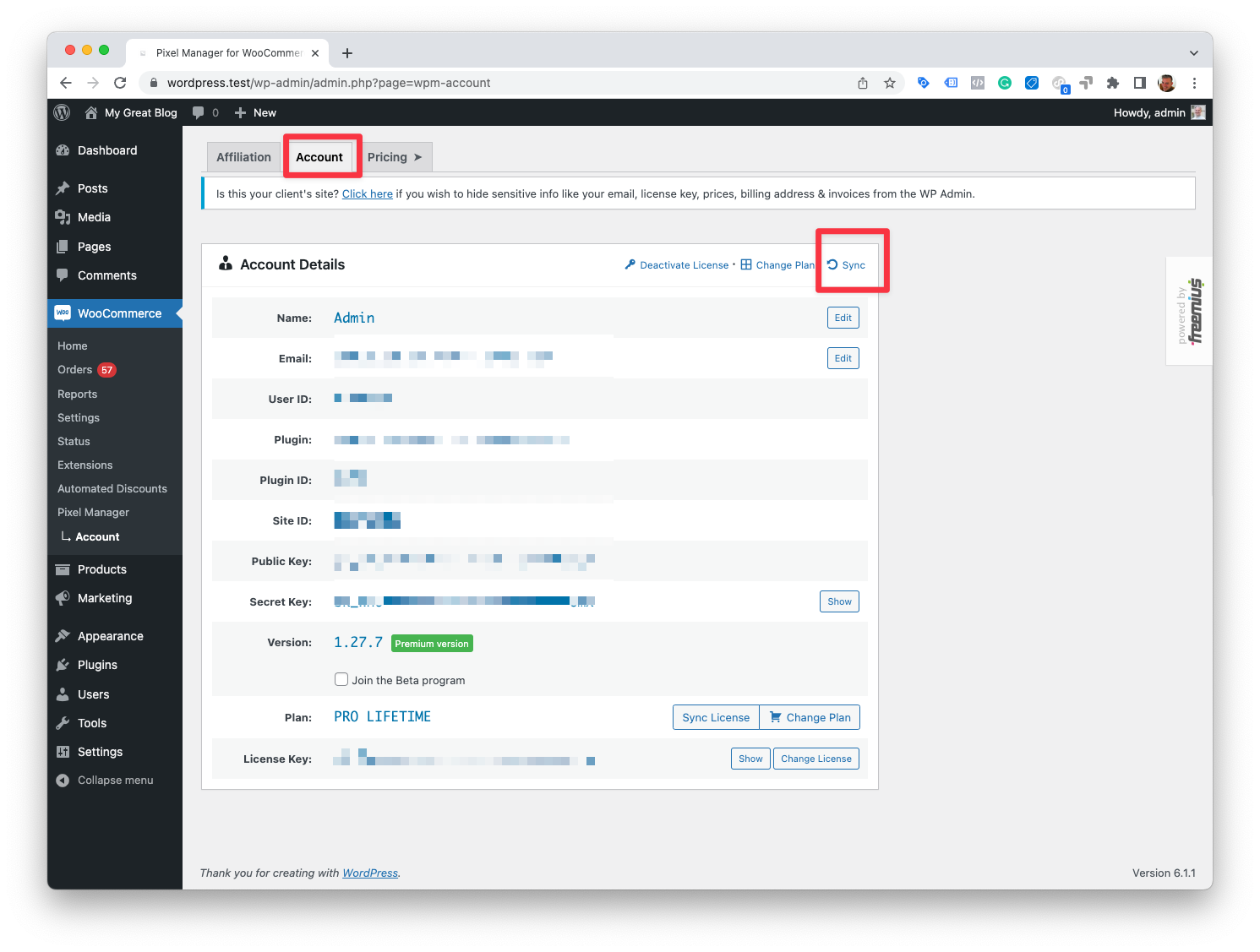
Go to the Account tab of the plugin and click the Sync button. This will sync the license and might fix the issue already. If it doesn't continue with the next approach.
Full Reset
Sometimes manually syncing the license or deactivating and reactivating the plugin will not help. In that case a full reset should help.
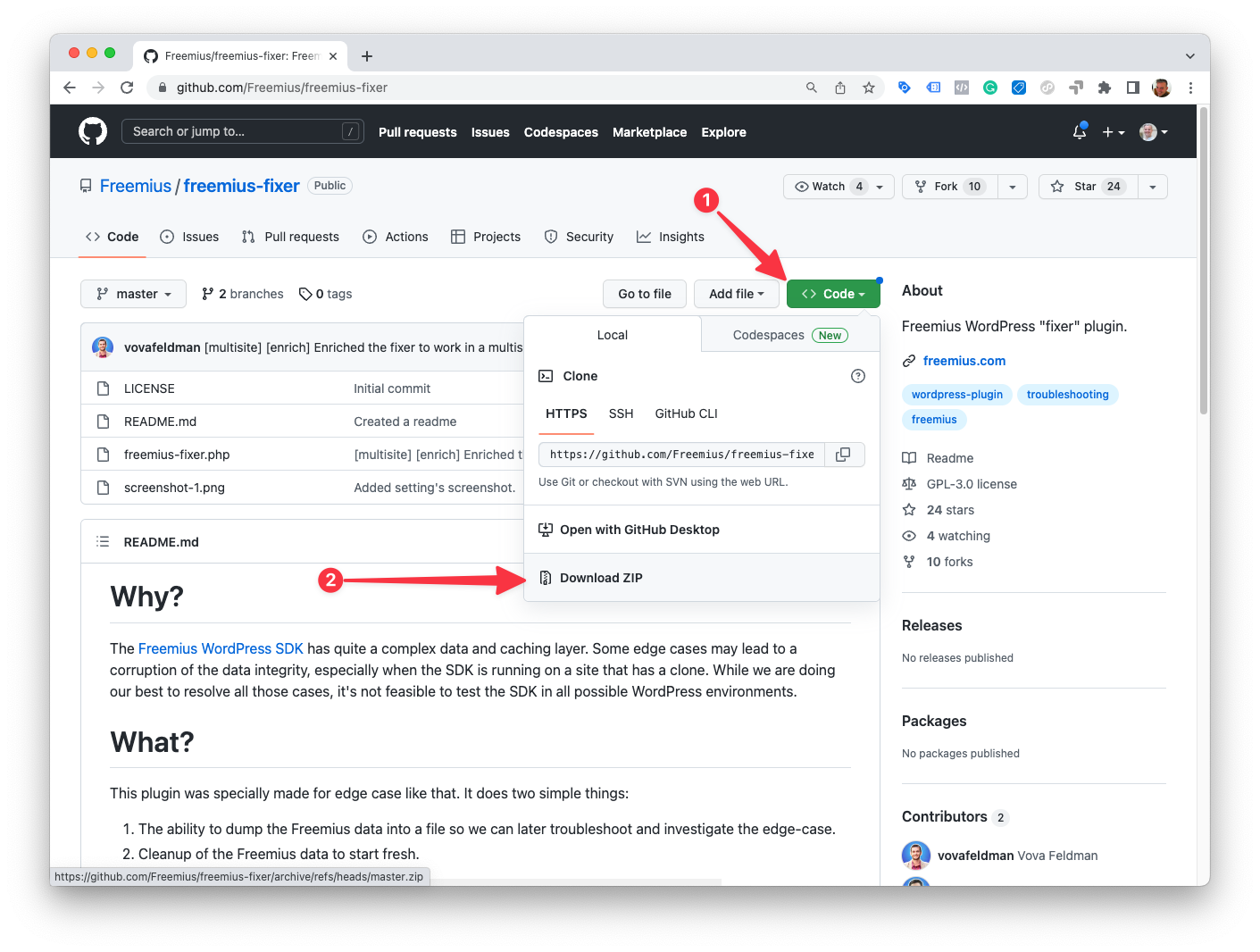
- Download the Freemius Fixer plugin from here: https://github.com/Freemius/freemius-fixer
-
Install the plugin on your website.
-
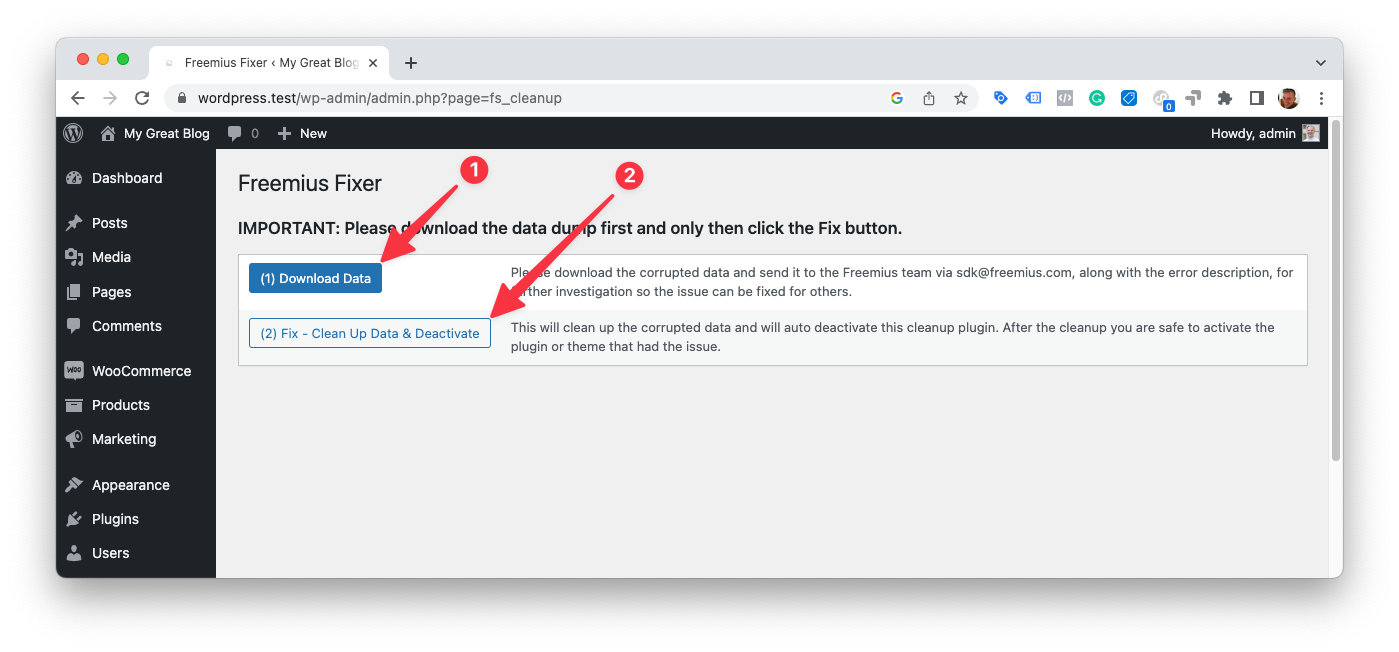
Run the Freemius Fixer.
- Now you will have to add your license back to the Pixel Manager by going to the Account page of the Pixel Manager. If you don't have it on file you can always log into your account and get it from there: https://sweetcode.com/freemius-account/
The REST endpoints for the Pixel Manager are not working
In some edge cases it can happen that the wp-json REST endpoints for the Pixel Manager stop working and return a 404.
Typically, this happens when switching from pretty links to non-pretty links in the WordPress permalink settings and if the website uses caching.
Clearing all server-side cache (caching plugin, server cache, CDN cache, etc.) should fix that issue.
A security firewall blocks the Pixel Manager's requests
A web application firewall (WAF) sits in front of WordPress: a security plugin such as Wordfence, ModSecurity or Imunify360 on the server, or a service such as Cloudflare or Sucuri. When one of its rules matches a Pixel Manager request, the firewall answers the request itself and WordPress never sees it. The two signatures below are the ones we see most often.
Settings do not save and the admin shows "API error 403" or "blocked before it reached WordPress"
Symptom: You change a setting and the Pixel Manager shows an error instead of saving it. Versions before 1.69.3 show API error 403. From 1.69.3 the message says the request was blocked before it reached WordPress and names the HTTP status and the request.
Cause: The admin saves every change as a PATCH request to /wp-json/pmw/v1/options. A firewall rule blocks that request, sometimes because of the values in the request body, sometimes because it blocks the PATCH method altogether.
How to confirm:
- Open the browser's DevTools (F12), go to the Network tab and change a setting.
- Click the
optionsrequest. A status of403whose response is an HTML page (a "Forbidden" page, a Wordfence block page, a hosting error page) comes from the firewall. When WordPress itself refuses a request, the response is JSON with acodefield. - If you use Wordfence, open Wordfence → Tools → Live Traffic, filter for blocked requests, and look for the entry for
/wp-json/pmw/v1/optionsat the time of your save. It names the firewall rule that fired. For an administrator's request, Wordfence usually offers to add the blocked parameter to the firewall allowlist right in that entry.
Fix: Allowlist the request in the security plugin, or, if the block happens on the server, send your host a request like this:
Saving settings in the Pixel Manager for WooCommerce fails with HTTP 403 on my site. The request is
PATCH /wp-json/pmw/v1/options, sent by a logged-in administrator at [date and time, including your time zone]. Please check the ModSecurity or WAF audit log and the web server error log for that request, tell me the ID of the rule that blocked it, and adjust or disable that rule for this site. Please also confirm that thePATCHmethod is allowed for/wp-json/.
Front-end requests fail with HTTP 406 and orders lose click IDs
Symptom: More orders than expected arrive without click IDs, and the Click ID Capture Quality report shows a low rate although campaigns are running and consent is granted. Nothing is visibly broken on the shop.
Cause: On cart and checkout pages, the browser reports the click IDs to your server with a POST to /wp-admin/admin-ajax.php (action pmw_process_transient_session_identifiers). A firewall rule, typically ModSecurity, answers that request with 406 Not Acceptable, so the WooCommerce session never receives the click IDs and the capture depends on the cookies alone. The shop keeps working, so the loss stays silent.
How to confirm:
- Open a cart page with DevTools open, go to the Network tab and filter for
admin-ajax. APOSTthat returns406is the block. - Open
/wp-admin/admin-ajax.phpdirectly in the browser. A plainGETreturns WordPress's own answer (0or400), which shows that WordPress is reachable and the firewall only reacts to thePOST. - The trigger is often a request header rather than the method. Chromium browsers send client hint headers such as
sec-ch-ua, and some rule sets match on them. Right-click the failed request, choose Copy → Copy as cURL, and run it in a terminal. Then remove thesec-ch-uaheaders and run it again. If only the version without them succeeds, the header is the trigger.
This is also why a host's own test can pass: a curl request without those headers returns 200 while every Chromium visitor is blocked.
Fix: Ask the host for the ID of the ModSecurity rule that fired (from the audit log, for the failed POST at a given time) and to correct or disable that rule. Do not settle for an allowlist entry for a single admin-ajax.php action: the same rule usually blocks other POST requests too, from the Pixel Manager and from other plugins.
The Pixel Manager doesn't recognize custom order paid statuses.
The Pixel Manager uses the WooCommerce order paid status to determine if an order has been paid. If you use a custom order paid status, the Pixel Manager will not recognize it.
You can use the following filter to add a custom order paid status to the Pixel Manager:
add_filter('woocommerce_order_is_paid_statuses', function ($statuses) {
  $statuses[] = 'custom-paid-status';
  return $statuses;
});
Action Scheduler
The Pixel Manager ships with the Action Scheduler library. It helps to compile reports at night, because they can take a long time to process.
In rare cases the Action Scheduler tables are bloated, locked and can cause the entire website to go down. It seems to be an ongoing issue that's not limited to users of the Pixel Manager: https://clicknathan.com/web-design/woocommerce-actionscheduler-table-error/
There are various ways to deal with this. All of them have essentially the goal to clean up and fix the Action Scheduler tables.
Remove unnecessary records such as failed, cancelled and completed jobs
Only do this if you know how to restore a database backup.
-
Take a backup of your database
-
Open your database and run the following SQL statements.
If your tables use a custom prefix other than wp_, adjust the prefix in the statement.
DELETE FROM `wp_actionscheduler_actions` WHERE `status` = 'canceled';
DELETE FROM `wp_actionscheduler_actions` WHERE `status` = 'failed';
DELETE FROM `wp_actionscheduler_actions` WHERE `status` = 'complete';
Locked database
Only do this if you know how to restore a database backup.
It can happen that the Action Scheduler is messed up so much, that the database is constantly locked by Action Scheduler reads/writes. As a result you can't access the database and fix the issue. Here's how deal with this problem.
-
Take a backup of your database.
-
Open the
wp-config.phpfile, take a note of the database password, delete the password in the file and save the file. The website will not be able to access the database anymore. The database should now be accessible again. -
Get your fixes done.
-
Add the database password back to
wp-config.php.
Drop current tables and replace them with fresh ones
Only do this if you know how to restore a database backup.
-
Take a backup of your database.
-
Download the following file by right-clicking on it and selecting "Save link as": replace-as-tables.sql and save it under the name
replace-as-tables.sqlon your local computer. -
Import the file into your database. If you use the default WordPress prefix
wp_in your database it will replace the existing tables. -
Now you have fresh Action Scheduler tables. If you're using the default WordPress prefix
wp_you're done. The tables are fixed. If you use a custom prefix, please continue with the next step. -
Drop the old tables manually.
-
Take the following SQL statement and replace
custom_prefix_with the prefix you're using in your database. Then run the SQL statement.
RENAME TABLE
    wp_actionscheduler_logs TO custom_prefix_actionscheduler_logs,
    wp_actionscheduler_groups TO custom_prefix_actionscheduler_groups,
    wp_actionscheduler_claims TO custom_prefix_actionscheduler_claims,
    wp_actionscheduler_actions TO custom_prefix_actionscheduler_actions
- Now you have fresh Action Scheduler tables with the correct prefix and everything should be working again.
Further Action Scheduler Support
The Action Scheduler is maintained by the Automattic team. If you need further support, please contact them directly: https://woocommerce.com/contact-us/
Call to undefined function as_has_scheduled_action()
If you get the following error message:
Call to undefined function ... as_has_scheduled_action() in...
It means that you're using a third-party plugin with an outdated version of the Action Scheduler library.
The Pixel Manager ships with the latest version of the Action Scheduler library that contains the as_has_scheduled_action() function.
The Action Scheduler is packaged within many plugins. When loaded the Action Scheduler automatically loads the latest version of the Action Scheduler library. However, this only works reliably from version 3.2.1 onwards.
Here's the WooCommerce troubleshooting article on this issue: Deconflicting Different Versions of Action Scheduler
There is a safeguard in the Pixel Manager that prevents using the function as_has_scheduled_action() if it is not available. But, it may happen that in a later version of the Pixel Manager we forget to add that safeguard (as this already happened in the past). If you're reading this article, we probably have forgotten again and need a slap on the wrist. Please contact us and we will fix it immediately.
Meta (Facebook)
Several entries below end in the same place, the settings of your dataset in Meta Events Manager. If you would rather check all of them once instead of following one symptom at a time, use the reference list: Meta Events Manager settings.
Server Sending Invalid Match Key Parameters
The way the Pixel Manager generates and sends the match key parameters prevents a mismatch to happen. Either they are sent correctly and matched by the Pixel Manager, or they are not sent at all.
The usual explanation for this warning is one or several of the following:
-
You recently enabled Meta (Facebook) CAPI. In that case, Meta (Facebook) sometimes unfortunately mixes up old with new values and generates this warning. Fortunately, this transitory situation is only temporary and resolved just by waiting a few days. In this case, the recommendation is to simply dismiss the warning. If the warning shows up again have a look at the other possible reasons. If you think all of them don’t come into question feel free to contact our support.
-
You are running a second instance of the Meta (Facebook) pixel through another plugin or custom code. If that is the case then that code is missing the correct match keys and causes the warning. Please disable additional Meta (Facebook) plugins and/or remove additional custom Meta (Facebook) code. Then dismiss the warning in Meta (Facebook). If the warning reappears go ahead and contact our support.
-
You've enabled Facebook to track events automatically without code. You need to disable that feature in the Facebook events manager.
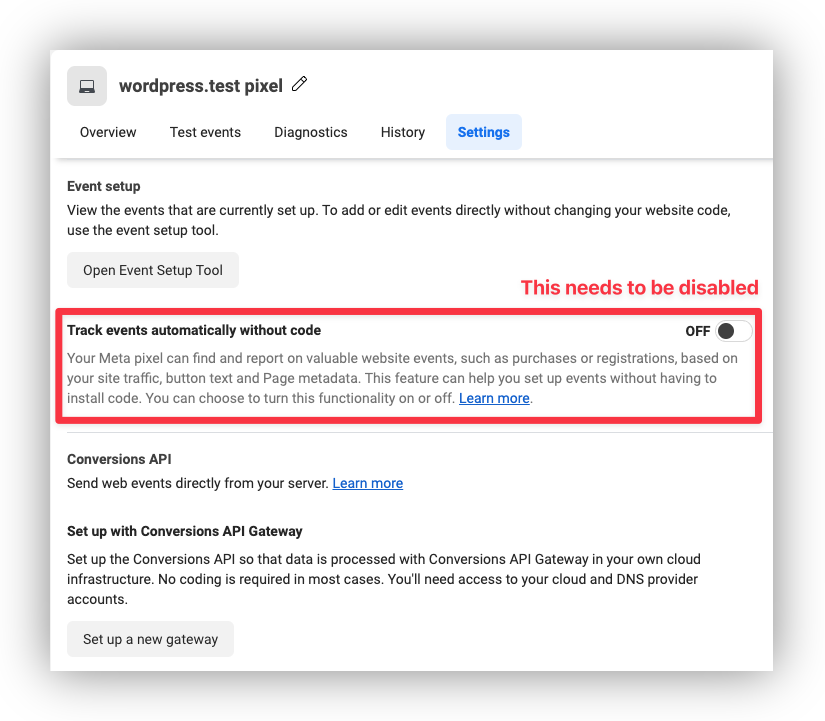
Purchase Event delay from the server (Conversion API)
Under normal conditions, the plugin sends the purchase event immediately to Meta (Facebook). But, when a payment for the order fails, no purchase event is sent through the Conversion API. Only when the payment on that order is recovered at a later point in time, then the purchase event will be sent to Meta (Facebook). This can lead to a Purchase Event delay from server warning. It can be safely ignored.
Potentially violating Personal data sent to Meta (Facebook)
This happens when Meta (Facebook) detects URL parameters that potentially contain personal data (PII) in the path of the URL.
Example: http://example.com/account/reset-password?username=johndoe
In this case, Meta (Facebook) detects that username probably contains personal information, issues a warning, and redacts the information like this: http://example.com/account/reset-password?username=_removed_
Our plugin does not add any information to the URL path. The only information that the Pixel Manager is sending through the browser pixel is product and order data. The source of this warning is URL paths generated by the server and must be fixed there.
Meta (Facebook) in some cases is "trigger-happy" and issues a warning, although there is no personal data in the URL path.
Example: http://example.com?_ip=123456
In this case, _ip=123456 resembles an IP address, but in your case, it might be something completely different. When you are sure it is no personal information you can safely ignore the warning.
I am getting "Failed to load resource: net::ERR_BLOCKED_BY_CLIENT"
This is usually caused by an ad blocker in the browser.
In order to fix this temporarily disable the ad-blocker or switch to another browser that doesn't have an ad-blocker enabled.
Read more about this here
The Meta pixel does not load, but the Google tag does
Symptom: Before a visitor accepts the cookie banner, or after they decline marketing cookies, the Google tag loads and sends requests, but the Meta pixel is completely absent: no fbevents.js, no requests to facebook.com/tr, and no errors in the console. Because Google works, the Meta pixel looks broken.
Cause: This applies when the shop requires consent before tracking, either with Consent → Explicit consent → Enable Explicit Consent Mode or with a cookie banner that runs in opt-in mode. In that setup it is the intended behavior. With Consent → Google Consent Mode v2 → Enable Google Consent Mode v2 with standard settings turned on, the Pixel Manager loads the Google tag for every visitor and lets Google Consent Mode tell Google what the visitor has agreed to, so Google can still send cookieless measurements. Meta has no equivalent mode, so the Pixel Manager does not load the Meta pixel at all until the visitor grants the marketing category. Without Google Consent Mode, the Google tag waits for consent too.
How to confirm: Open the shop in a private window, answer the banner, then run the checks in the browser's DevTools.
| Check | Marketing denied | Marketing granted |
|---|---|---|
pmwDataLayer.pmw_loaded in the console | true | true |
typeof gtag in the console | "function" | "function" |
typeof fbq in the console | "undefined" | "function" |
| Network tab | no fbevents.js, no signals/config request | fbevents.js and signals/config/<pixel_id> load with status 200 |
| Console errors | none | none |
In the denied state, the console also shows the Pixel Manager's line The pixel has not loaded because you have not given consent for it yet, naming category: marketing and pixel: Facebook. Add ?pmwloggeron to the URL for the full log (see Console Logger).
The Pixel Manager's own pixel-facebook script can load in both states. What only loads after consent is Meta's fbevents.js.
Fix: None is needed if the denied column matches. If the Meta pixel still does not load after the visitor accepted marketing cookies, check that your banner maps its marketing category correctly, see Consent Management.
Duplicate Purchase event caused by Meta's automatic event detection
Quick summary: If you see a duplicate Purchase event in Meta Events Manager, and the duplicate event ID looks like pmw_xq9m1b4a3uqdcc61_26495490706760077, the duplicate is fired by Meta's fbevents.js, not by the Pixel Manager. Fix it in Meta Events Manager by turning off Track Events Automatically Without Code.
If automatic event detection is already off in Events Manager and you still see duplicates, this entry does not apply — jump to Duplicate events persist even with automatic event detection disabled (fbevents.js library bug) and run the quick URL-parameter test described there.
Symptom
Two Purchase events arrive in Meta Events Manager for the same order:
- The legitimate one fired by the Pixel Manager, with an event ID in the format
pmw_<order_id>— for examplepmw_145741. - A second one with an unusual event ID that combines a random string with a long numeric suffix — for example
pmw_xq9m1b4a3uqdcc61_26495490706760077. The random middle part matches the format the Pixel Manager uses for non-purchase events (pmw_<16 base36 chars>), but the numeric suffix is appended by Meta.
The second event is not fired by the Pixel Manager. It is fired by Meta's own fbevents.js script as part of a feature Meta calls Track Events Automatically Without Code (also referred to as automatic event detection, microdata events, or inferred events).
Why this happens
When the Meta pixel loads, it requests a configuration from Meta at https://connect.facebook.net/signals/config/<pixel_id>. That configuration controls several behaviors of the pixel, including inferredEvents, microdata, automaticMatching, and openbridge (Meta's managed CAPI Gateway).
If automatic event detection is enabled for the pixel in Events Manager, fbevents.js scans the page's structured data (Schema.org JSON-LD, OpenGraph tags, microdata attributes) and DOM shortly after PageView fires. When it detects an ecommerce signal on an order confirmation page, it fires its own additional Purchase event to Meta. This event is constructed inside fbevents.js and never goes through the Pixel Manager's code path.
The event ID format pmw_<random>_<number> is a Meta-internal pattern: Meta's pixel code takes the most recent event ID it has seen on the page (typically the Pixel Manager's PageView event ID, which uses the random format) and appends its own internal sub-event counter or hash. This is why the duplicate event ID appears to inherit the Pixel Manager's namespace, even though the Pixel Manager did not create it.
This is by design from Meta's side. The Pixel Manager cannot prevent it from within its own code path, because the duplicate originates inside fbevents.js after the Pixel Manager has already handed off to it.
How to identify this specific cause
Open the order confirmation page (for example /checkout/order-received/...) with Chrome DevTools open. In the Network tab, filter for facebook.com/tr and facebook.com/privacy_sandbox/pixel/register/trigger (Meta uses both endpoints depending on browser and Privacy Sandbox settings).
Examine the eid query parameter on each ev=Purchase request:
eid=pmw_<order_id>(e.g.pmw_145741) → legitimate Pixel ManagerPurchase.eid=pmw_<16 chars>_<long number>(e.g.pmw_xq9m1b4a3uqdcc61_26495490706760077) → Meta auto-detected duplicate.
If both appear, the case described on this page applies.
If the duplicate event ID does not start with pmw_, the duplicate is coming from a separate pixel integration on your site (another plugin, a GTM tag, custom theme code, etc.). That's a different problem — audit the installed plugins and any GTM containers loaded on the order confirmation page.
Solution 1: Turn off automatic event detection in Meta Events Manager (recommended)
This is the cleanest fix because it stops the duplicate at the source and applies to every site that uses this pixel.
- Sign in to Meta Business Manager.
- Open Events Manager.
- In the left sidebar, select Data Sources and click the relevant Facebook pixel.
- Click the Settings tab.
- Scroll to the section labeled Track Events Automatically Without Code (sometimes shown under Event Setup).
- Toggle it off and save.
After a short propagation delay (usually minutes), Meta stops sending the automatic event detection configuration to the pixel on page load, and the duplicate Purchase stops firing.
Solution 2: Turn autoConfig off with the pmw_facebook_auto_config filter
Available in Pixel Manager 1.66.1 and later. On earlier versions, use Solution 1.
Use this if you cannot or do not want to change the Meta Events Manager setting — for example, on a pixel managed by another team, or when the change should live with the site code rather than the Meta configuration.
add_filter('pmw_facebook_auto_config', function ($enabled, $pixel_id) {
	return false;
}, 10, 2);
The Pixel Manager then issues fbq('set', 'autoConfig', false, '<pixel_id>') immediately before it initializes that pixel, which is the only moment fbevents.js honors the setting. From then on the pixel is opted out of Meta's AutomaticSetup feature bundle, and the opt-in calls that arrive with the pixel configuration a moment later cannot switch it back on. The filter runs once per pixel, so returning false only for a specific $pixel_id covers a single pixel of a multi-pixel setup. Full reference: Turn Meta's automatic configuration off.
Do not hand-roll this with a window.fbq stub of your own. Meta's pixel bootstrap starts with "if fbq already exists, do nothing", so any placeholder fbq defined before the Pixel Manager runs stops fbevents.js from loading at all, and the Meta pixel then tracks nothing. Earlier versions of this page recommended such a snippet, which was wrong. The Pixel Manager logs a console warning when it finds a foreign fbq.
Solution 2 is broader than Solution 1. Solution 1 turns off exactly the automatic event detection feature; autoConfig off opts the pixel out of Meta's whole AutomaticSetup bundle, which as of fbevents.js 2.9.393 also covers:
- Microdata scraping and enrichment, which adds
custom_datafields read out of the page markup to legitimate events. Negligible for Pixel Manager users, because the Pixel Manager supplies the event data itself. - Meta's regex- and AI-based matching extensions and its
AutomaticParametersinstrumentation. - SmartSetup, including Meta's total-price extraction.
- Engagement instrumentation such as scroll depth, page metadata, and Meta's web chat integration.
- Future Meta features that Meta ships inside the same bundle will not reach the pixel while the filter is active.
What autoConfig off does not touch, contrary to what this page claimed until version 1.66.1 of the plugin, because each of these carries its own opt-in:
- The pixel configuration is still downloaded and executed.
autoConfigis an opt-out, not a switch that stops the file athttps://connect.facebook.net/signals/config/<pixel_id>from loading. - Event Setup Tool rules and their value extractors. The rule engine installs its own click listener and checks only its own opt-in, so a rule keeps firing. Remove the rules in Events Manager, see Extra events caused by Meta's Event Setup Tool rules.
- Meta's Conversions API Gateway (
openbridge). Disconnect it in Events Manager, see Meta's Conversions API Gateway sends a second server event for every browser event. - Meta's base automatic advanced matching, its business-category event restrictions, first-party cookies, and bot blocking.
Solution 1 stays the better fix for most shops. Solution 2 exists for the cases where the Events Manager setting is out of reach, and the two are not equivalent.
If neither solution stops the duplicates
If you've already disabled automatic event detection (Solution 1) or turned autoConfig off (Solution 2) and duplicate Purchase events still appear, the cause is most likely a separate, well-known intermittent bug in Meta's fbevents.js tracking library itself — not the automatic event detection feature. Continue to the next entry and run the one-URL test described there to confirm and fix it.
Why the Pixel Manager doesn't auto-fix this
The duplicate is fired from within Meta's fbevents.js after the Pixel Manager has already handed off to it, so the Pixel Manager cannot intercept it from its own code path. The Pixel Manager could expose an autoConfig-disable toggle, but the broader side effects listed above mean it would not be safe to enable by default for all users. The Pixel Manager already uses standard event ID conventions (pmw_<order_id> for purchases and pmw_<random> for other events), which is what makes these Meta-generated duplicates easy to identify in the first place.
Duplicate events persist even with automatic event detection disabled (fbevents.js library bug)
When to use this entry: Use this when you have already ruled out the more common causes — no other Meta pixel implementations on the site, and Track Events Automatically Without Code is already turned off in Meta Events Manager (see the previous entry) — and duplicates still appear. This is a known intermittent bug in Meta's fbevents.js tracking library. The fix is to load an older, known-good version of fbevents.js. There is a one-URL test you can run on the order confirmation page to confirm the cause in under a minute.
It has proven to be difficult to convince Meta (Facebook) support to fix this. Luckily the Pixel Manager has a built-in workaround.
Quick test: load an older fbevents.js from the URL
You can confirm whether this bug is the cause by loading an older version of Meta's fbevents.js library just for one page load, by appending a query parameter to the URL of the page where you see duplicates (typically the order confirmation page, e.g. /checkout/order-received/...).
- Pick an older version to test against. Version
2.9.84has proven to work in our tests. We track a few historical versions in this repository: https://github.com/alewolf/fbqevent.js - Append
fbevents-version=2.9.84to the page URL — for example:
https://example.com/checkout/order-received/12345/?key=...&fbevents-version=2.9.84
- Open the page and watch Meta Events Manager or the browser Network tab. If the duplicate
Purchaseevents stop, you have confirmed it is a tracking-library bug. If they continue, it is something else — go back and re-check duplicate pixel implementations on the site, or the automatic event detection entry.
Permanent fix
Once the URL test confirms the cause, use the following filter to force the Pixel Manager to always load that older fbevents.js version for every visitor:
add_filter('pmw_facebook_fbevents_script_version', function () {
	return '2.9.84';
});
Make sure to clear all server-side cache (caching plugin, page cache, CDN) after adding the filter, otherwise visitors will keep getting the cached page with the current fbevents.js URL.
Even when automatic event detection is already off in Events Manager, this URL test is worth running early in any duplicate-events investigation — it takes seconds and rules in or out the most common remaining cause.
Extra events caused by Meta's Event Setup Tool rules
Quick summary: If Meta Events Manager shows extra Purchase, AddToCart, InitiateCheckout, or other standard events that fire when a visitor clicks a button — with no event ID and usually no value — the events are fired by point-and-click Event Setup Tool rules stored on the pixel in Meta Events Manager, not by the Pixel Manager. Remove the rules in Events Manager under Data sources → select your pixel → Settings → Event setup → Manage.
The Pixel Manager (version 1.64.0 and higher) detects these rules automatically and shows a warning in the Opportunities tab and in the debug report when active rules are found on your pixel.
Symptom
Event counts in Meta Events Manager are inflated, and purchase values are wrong or missing. Looking closer, extra standard events fire whenever a visitor clicks a specific button — for example a Purchase event on every click of the place-order button, even when the payment fails and no order is created. The extra events carry no event ID, so Meta cannot deduplicate them against the correctly tracked events the Pixel Manager sends, and they usually carry no value or a value scraped from the page.
Why this happens
Meta's Event Setup Tool lets anyone with access to the pixel define events by pointing and clicking on elements of the website — typically "fire a Purchase when a button containing this text is clicked". These rules were often set up long ago, by an agency, or during an earlier tracking setup attempt, and merchants rarely know they still exist.
The tool is also what sits behind the Set up the selected events for me button that Events Manager offers under Manage Events. Accepting that offer creates exactly the rules described here, so decline it: the events Meta lists as missing are drawn from what Meta itself has been allowed to detect, not from what your pixel actually sends.
The rules are not stored on your website. They are stored on the pixel itself and delivered to every browser through the pixel's public configuration file at https://connect.facebook.net/signals/config/<pixel_id>, as estRules (event rules) and iwlExtractors (value extraction rules that scrape amounts out of the page's HTML). When a rule matches, fbevents.js fires the event directly, completely outside the Pixel Manager's code path.
Because these rule-based events have no event ID, deduplication is impossible. The result is systematic double counting: one correct, deduplicated event from the Pixel Manager, plus one rogue event from the rule. A Purchase rule bound to the place-order button is the worst case, because it fires on every click attempt, including failed payments, and typically without the order value.
How to identify this specific cause
- Pixel Manager 1.64.0 and higher: open the Pixel Manager and check the Opportunities tab. If active Event Setup Tool rules are found on your pixel, a warning card lists the affected event names per pixel. The same information appears in the debug report under Meta Event Setup Tool. From 1.66.1 on, both list the rule and extractor IDs and the URL each value extractor is scoped to, which is what Meta support needs.
- Manually: open
https://connect.facebook.net/signals/config/<pixel_id>(replace<pixel_id>with your pixel ID) in a browser and search the file forestRules. Rules with"rule_status":"ACTIVE"and a"derived_event_name"fire the named event. Also search foriwlExtractors, which lists value extraction rules. - In the Network tab: on the page where the extra event fires, open Chrome DevTools, filter for
facebook.com/tr, and click the button in question. Rule-fired requests carry acd[cs_est]=trueparameter and noeidin the Pixel Manager'spmw_format.
Solution: remove the rules in Meta Events Manager
- Sign in to Meta Business Manager and open Events Manager.
- In the left sidebar, select Data Sources and click the relevant pixel.
- Click the Settings tab.
- Scroll to the Event setup section and click Manage.
- Delete or deactivate all rules listed there. The Pixel Manager already tracks all shop events with deduplication and accurate values, so none of these rules are needed.
After a short propagation delay (usually minutes, at most until the configuration cache expires), the pixel configuration no longer contains the rules and the rogue events stop.
If the rules survive their deletion
Two things regularly keep a rule alive after you believe you removed it:
- The list is filtered by the URL you open it on. The Event Setup Tool only shows the rules and value extractors of the page it was opened for. A
Purchaserule scoped to/checkout/is invisible when you open the tool on the homepage. Open it on the exact URL the Pixel Manager reports for the entry. - Meta sometimes keeps delivering deleted rules. We have seen pixels where nine of eleven deleted rules disappeared from the public configuration while the remaining two kept being delivered as
"rule_status":"ACTIVE"for weeks. Nothing on your website or in the Pixel Manager can remove them, and re-running the deletion does not help either.
For the second case, contact Meta support with the rule and extractor IDs from the Pixel Manager's debug report (Meta Event Setup Tool), state that the entries were deleted in Events Manager but are still delivered as active in https://connect.facebook.net/signals/config/<pixel_id>, and ask them to remove the orphans. Until they do, the Pixel Manager keeps reporting them, because the scan reads Meta's live configuration rather than your Events Manager screen.
There is no way to stop these rules from your website. autoConfig off (the pmw_facebook_auto_config filter) does not help here, although this page said so until version 1.66.1 of the plugin: Meta's rule engine installs its own click listener and checks only its own opt-in, which autoConfig does not clear. The rules have to go on Meta's side.
How to read Meta's browser-received and server-received event counts
Quick summary: The browser received and server received numbers in Meta Events Manager, and in the CSV export behind them, are raw intake counts taken before deduplication. A shop running the Pixel Manager's browser pixel together with the Conversions API is supposed to show more server events than browser events, and a ratio in these columns never means your conversions were counted twice. The views that show what Meta actually counted are Event deduplication and Event match quality → Additional conversions reported.
Every Meta troubleshooting thread eventually arrives at the Events Manager numbers, and three of those views are routinely read as symptoms when they are not. Here is what each one actually reports.
Browser received and server received (Events Manager → your event → Overview, and the CSV export)
These two columns count how many events arrived at Meta through each channel, before Meta collapses matching pairs. The Pixel Manager sends a Purchase from the browser and the same Purchase from your server, both carrying the identical event ID pmw_<order_id>, so both channels report the event and Meta then merges the pair into one conversion. Seeing the event in both columns is the system working.
What the healthy shape looks like:
- Server received is higher than browser received. The Pixel Manager sends exactly one server-side
Purchaseper paid order, whether or not the browser pixel survived. The browser event only exists for the share of buyers whose browser was not blockingfbevents.jsand who actually reached the order confirmation page. The gap between the two columns is not loss, it is precisely the set of conversions the Conversions API is there to recover. A shop where 70% of buyers produce a browser event will show roughly 100 server events against 70 browser events. - Neither column tells you about double counting. For that, open Event deduplication, or Event match quality → Additional conversions reported. The latter reports the share of conversions Meta counted on top of the deduplicated ones.
0%forPurchasemeans nothing extra was counted, no matter what the intake columns say. - The ratio grows with the share of orders that never came through your checkout. The server-side
Purchasegoes out for every order that reaches a paid status, whatever created that order: orders written by an ERP or marketplace integration through the REST API, orders placed by staff in the admin, subscription renewals, and orders moved to a paid status days after checkout. None of them has a browser event to pair with, so each one adds to the server column alone. A shop that takes most of its orders through an integration can legitimately show eight or more server events per browser event, together with a deduplication coverage rate near0%and almost no_fbpon the server side. Deduplication has nothing to pair, not the wrong thing to pair. The Order origin (created_via) breakdown in the Click ID Capture Quality report tells you how large that share is on your shop.
What is genuinely worth investigating:
- Server received is a clean multiple of browser received, hour after hour, but only in hours where a browser event fired. That pattern is a mirror: something is copying browser events into the server channel. The usual cause is Meta's own Conversions API Gateway, see Meta's Conversions API Gateway sends a second server event for every browser event.
- Server received is far higher than your paid order count. That points at a second server-side sender on the same dataset rather than a mirror. Audit Events Manager → Settings → Integrations. Count the orders of every origin and every status that reached a paid status that day, not just the ones placed through your storefront: comparing a day's server events against the storefront orders alone is the most common way this test is failed, and it makes a healthy shop look like it is sending eight events per order.
The Test Events window stays empty (Events Manager → Test Events)
Server-side events only appear in the Test Events window when they carry a test event code, and the Pixel Manager deliberately leaves that field empty in production. A normal order will therefore never show up there, and this is expected rather than a failed event. To use the window, set a code under Tracking Pixels → Meta → CAPI Test Event Code for the duration of the test, then clear it again. See Testing.
Sampled activities is a sample (Events Manager → your event → Sampled activities)
As the name says, this tab shows a sample of recent events, not a complete log, and it regularly renders no rows at all. One specific order missing from it is not evidence that Meta did not receive the event. Use Event deduplication or Test Events with a test event code set when you need to confirm a single order.
Meta's Conversions API Gateway sends a second server event for every browser event
Quick summary: If your server received count is close to exactly twice your browser received count in every hour where a browser event fired, the extra server events are almost certainly mirrors created by Meta's own Conversions API Gateway (internally called OpenBridge), which copies every event the browser pixel fires and delivers it to Meta a second time through the server channel. It runs on Meta's side, is invisible in your WordPress plugin list, and survives removing the plugin that once configured it. Turn the Gateway connection off under Events Manager → Settings → Integrations and keep the Pixel Manager's Conversions API.
Symptom
The Purchase intake numbers show a systematic, not occasional, ratio: 1 browser event against 2 server events, 3 against 6, and so on, holding across most hours of a 28-day export. Meanwhile the shop runs only one tracking plugin, no second pixel snippet is present in the page source, and the Pixel Manager's own guards against duplicate purchase tracking are demonstrably in place.
Why this happens
Meta's Conversions API Gateway is a Meta-hosted relay. When it is connected to a pixel, Meta delivers an openbridge block inside the pixel configuration that every visitor's browser downloads from https://connect.facebook.net/signals/config/<pixel_id>. fbevents.js then loads the openbridge3 plugin and opts the pixel in, and from that point on every event the browser pixel fires is also POSTed to the Gateway endpoint, which forwards it to Meta as a server event.
So a single order on a shop that runs both the Gateway and the Pixel Manager's Conversions API produces three arrivals:
- one browser
Purchasefrom the Pixel Manager's pixel, - one server
Purchasethat is the Gateway's mirror of that browser event, - one server
Purchasefrom the Pixel Manager's Conversions API.
That is the 1:2 ratio, and it appears only in hours where a browser event fired, because the Gateway has nothing to mirror otherwise. The arithmetic across a longer window makes it unmistakable. One shop measured 74 browser and 180 server Purchase events over 28 days: 74 of the server events were Gateway mirrors of the browser events, and the remaining 106 were the Pixel Manager's, one per paid order. The gap between 106 orders and 74 browser events is the ordinary share of buyers whose browser pixel was blocked.
Your conversions are not being double counted. The Gateway mirror carries the browser event's own event ID, so Meta deduplicates the pair exactly as it deduplicates the Pixel Manager's browser and server events. Confirm it under Event match quality → Additional conversions reported, which should read 0% for Purchase.
How to identify this specific cause
- In Events Manager: open Settings → Integrations (labeled Your existing integrations in some views). A connected Gateway is listed as Conversions API Gateway, with a Connected badge and the name of the pixel it feeds. The same list is where leftover connections from removed plugins show up, for example a WordPress connection left behind by the Meta for WooCommerce plugin. A deactivated WordPress plugin cannot send anything and its database rows are inert, but the connection Meta holds on its side outlives the plugin.
- Manually, from the pixel configuration: open
https://connect.facebook.net/signals/config/<pixel_id>in a browser and search foropenbridge. An active Gateway appears as aconfig.set("<pixel_id>","openbridge",{"endpoints":[…]})block followed byfbq.loadPlugin("openbridge3")and anoptIn(…,"OpenBridge",true)call. The block also carries aneventsFilter; inblocklistmode, every event not named in it is mirrored, so aPurchaseabsent from that list is being copied.
Solution: disconnect the Gateway and keep the Pixel Manager's Conversions API
- Sign in to Meta Business Manager and open Events Manager.
- Select Data Sources, click the relevant pixel, and open the Settings tab.
- Find the Conversions API Gateway entry in the integrations list and click See Details.
- In the Gateway panel, open Settings and click Disconnect. Confirm the dialog, then click Next and Finish.
- While you are there, remove any stale connections on the same dataset, such as a WordPress connection left over from a Meta tracking plugin you no longer run.
- If the Gateway was deployed into your own AWS account, disconnecting it in Events Manager does not remove the cloud resources, and they keep costing money. In the AWS console, delete the Gateway's CloudFormation stack, then delete its CloudWatch log group, which the stack deletion leaves behind.
The Pixel Manager's warning card in the Opportunities tab can stay visible for up to a day after you disconnected the Gateway, because the Pixel Manager re-checks Meta's pixel configuration once a day. To check directly, open https://connect.facebook.net/signals/config/<pixel_id> and confirm that openbridge no longer appears. Meta can take a while to update this file after you disconnect, so an openbridge block that is still there right after the change does not mean the disconnect failed.
Running both is not worth it. The Gateway can only mirror events the browser already sent, so it contributes nothing for the roughly 20% to 40% of orders where the browser pixel is blocked or never reaches the order confirmation page. The Pixel Manager's Conversions API sends from your server, once per paid order, and therefore covers exactly those orders. Two server-side senders on one pixel add intake noise and a second thing to reason about, without adding a single recovered conversion.
The Gateway cannot be switched off from your website either. autoConfig off (the pmw_facebook_auto_config filter) does not stop the mirror, although this page said so until version 1.66.1 of the plugin: fbevents.js gates openbridge on its own opt-in, which autoConfig does not clear. Disconnect the Gateway in Events Manager.
Facebook Ads Manager shows more conversions than WooCommerce orders
This is one of the most common questions we receive. Before anything else, establish the ground truth: Ads Manager applies attribution modeling (attribution windows, view-through credit, delayed restatements) on top of the raw events, so only Meta Events Manager can tell you whether an event actually fired more than once. Pick one known order, find its Purchase events in Events Manager (match by time and value), and count them. Exactly one deduplicated event per order means the tracking is correct and the discrepancy is Ads Manager reporting behavior. More than one event means real duplication; work through the following checklist in order.
One caveat before you start counting: the browser received and server received columns are raw intake counts taken before deduplication, and with the Conversions API active the server column is meant to be the higher of the two. See How to read Meta's browser-received and server-received event counts before treating a ratio there as duplication.
-
Check for duplicate pixel implementations. Make sure only one plugin or code snippet fires the Meta pixel on your site. If you're running Pixel Manager alongside another Meta tracking plugin or have manual pixel code in your theme, remove the duplicates. Use Meta Events Manager → Test Events to verify.
-
Disable Automatic Events in Meta Events Manager. Go to Events Manager → your Pixel → Settings → turn off Automatic Events (sometimes labeled Track Events Automatically Without Code). This Meta feature fires events on top of your existing pixel implementation and can inflate conversion numbers. If you can pattern-match the duplicate event ID against the format
pmw_<16 chars>_<long number>, this is almost certainly the cause — see the dedicated entry for the full diagnosis. -
Remove Event Setup Tool rules. Point-and-click rules stored on the pixel fire extra events on button clicks, without an event ID and usually without a value. The Pixel Manager (1.64.0+) warns about these in the Opportunities tab — see the dedicated entry.
-
Verify CAPI deduplication. If you're using both the browser pixel and the Conversions API, check that events in Events Manager show as "Deduplicated." If they don't, ensure that one plugin handles both sides. The Pixel Manager automatically generates matching
event_idvalues for proper deduplication. Splitting browser pixel and CAPI between different tools is a common cause of double-counting. See also: Facebook CAPI Deduplication and Match Key Parameters. -
Audit the other senders on the dataset. A pixel can be fed by more than your website. Meta's own Conversions API Gateway mirrors every browser event into the server channel and is the most common hidden second sender, see the dedicated entry. Also check Events Manager → Settings → Integrations for offline or CSV uploads, catalog integrations, partner connectors such as Stape, and connections left behind by tracking plugins you have since removed.
-
Check which events you're counting as conversions. In Ads Manager, if your campaign counts both AddToCart and Purchase as conversions, both events appear in the "Conversions" column. Make sure to look at only purchase conversions in Ads Manager, not the aggregate "Conversions" or "Results" column, which may include other events like AddToCart or form submissions.
Keep in mind that Facebook purchase conversions should always be lower than the total number of WooCommerce orders, because Facebook only attributes conversions to ad interactions. If Facebook is reporting more purchase conversions than your total WooCommerce orders, that's a clear signal of a technical issue.
For a comprehensive explanation of all causes, see our blog post: Why Facebook Shows More Conversions Than WooCommerce Orders.
Meta shows fewer events than my shop has visitors
Quick summary: If Meta Events Manager receives real events, but far fewer than your shop has visitors, the cause is almost always one of four things: lazy loading holds tracking back until the visitor interacts, explicit consent holds it back until the cookie banner is accepted, an off-site payment gateway keeps buyers from reaching the order confirmation page, or the visitor blocks the pixel. None of these is a tracking bug, and each one has a different fix.
The same causes apply to every other pixel, so what you learn here explains a low event count in Google Ads, TikTok or Pinterest just as well.
Start with the Console Logger: load a product page with ?pmwloggeron appended to the URL and do not touch the page. What you see in the console tells you which of the four you are looking at.
1. Lazy loading (Pro). If the console stays empty until you move the mouse or press a key, and the page source shows the Pixel Manager script as type="text/pmw-lazy", then lazy loading is active. Every visitor who lands and leaves without interacting is untracked. Desktop visitors trigger it almost immediately through mouse movement, so the losses are concentrated on mobile visitors who never scroll. Purchases are never affected. Switch the setting off under General → General, Lazy-load the Pixel Manager, or read the full trade-off first.
2. Explicit consent. Look for Consent mode: explicit in the console, followed by a Region check line. Region check: restricted → blocking all categories means this visitor is inside your restricted regions list, and nothing is sent until they accept your banner. That is the setting working as intended, and the events of everyone who ignores the banner are gone. Two things worth checking: that your restricted regions list really matches the countries where you are legally required to ask for consent first, and that your banner is prominent enough to actually be answered. See Consent management.
3. Purchases specifically. If the funnel events look healthy but purchases are missing, the shop most likely uses an off-site payment gateway that does not reliably return buyers to the order confirmation page. Open the debug report under WooCommerce → Pixel Manager → Support and read the WooCommerce Payment Gateways section: it reports, per gateway, how many recent orders reached the confirmation page, and how many of the missing ones Automatic Conversion Recovery has recovered. See Payment gateways and Automatic Conversion Recovery.
4. Ad blockers and tracking protection. A share of every shop's visitors block fbevents.js outright, which shows up as Failed to load resource: net::ERR_BLOCKED_BY_CLIENT in the console. The Conversions API recovers part of this, and the server-side proxy recovers considerably more by serving the tracking from your own domain.
A gap between shop visitors and Meta events is normal even with everything configured perfectly, because of point 4 alone. What should worry you is a gap that grows suddenly, or one where a whole event type is missing rather than thinned out. A missing event type points at something else: see Meta silently drops AddToCart, InitiateCheckout and Purchase below.
Meta silently drops AddToCart, InitiateCheckout and Purchase (restricted business category)
Quick summary: If Meta Events Manager receives PageView and ViewContent but never AddToCart, InitiateCheckout, AddPaymentInfo or Purchase, and there is no error anywhere, then Meta is most likely blocking those events because of the business category your pixel is classified under. Health and wellness is by far the most common category affected. The block is enforced inside Meta's own fbevents.js library, and the Conversions API (CAPI) does not bypass it. No plugin, snippet or setting on your website can send these events while the restriction is active. It has to be resolved on Meta's side, in Events Manager, by getting the business category corrected or reviewed.
The Pixel Manager (version 1.64.0 and higher) detects the restriction automatically and names the blocked events in the browser console and in the debug report under Meta Business Category Event Restrictions.
Symptom
Tracking looks broken, but only for the lower part of the funnel:
PageViewandViewContentarrive in Meta Events Manager as usual.AddToCart,InitiateCheckout,AddPaymentInfoandPurchasenever arrive, not in Events Manager, not in the Test Events tool, not even for a test purchase you make yourself.- The browser console shows no error. The Pixel Manager console logger (
?pmwloggeron) reports that it fired the event. - In the browser Network tab there is no request to
facebook.com/trfor the missing events, while the requests forPageViewandViewContentare there. - Switching Meta plugins, reinstalling, clearing caches, disabling consent management, or enabling the Conversions API changes nothing.
Because add to cart and purchase are exactly the events shop owners care about, this looks like a plugin bug. It is not. The Pixel Manager calls fbq('track', 'AddToCart', ...) normally, Meta's library accepts the call without complaint and then discards it.
Why this happens
Meta restricts what data it will accept from advertisers in sensitive verticals. When a pixel belongs to a business that Meta has categorized as restricted, most commonly health and wellness (for example medical devices, medical alert systems, supplements, pharmacies, clinics, therapy and mental health services, medical test kits), Meta blocks the lower-funnel conversion events for that pixel and keeps only the more generic ones.
The restriction lives on the pixel, not on your website. Meta delivers it to every browser through the pixel's public configuration file at https://connect.facebook.net/signals/config/<pixel_id>, as an eventValidation entry that lists the blocked event names in restrictedEventNames. Meta's fbevents.js library reads that list and, whenever your site tracks one of those events, drops it before it is sent. Nothing reaches Meta, and nothing is logged as an error.
Two consequences are worth spelling out, because both are frequently assumed to be workarounds and neither is:
- The Conversions API does not help. The restriction is applied to the data source (the pixel and the domain), not to the transport. Server-side events for a restricted event name are received by Meta and then discarded, so sending
Purchasethrough CAPI does not get it counted. Buying a Pro version of any plugin for the sake of CAPI will not fix this. - Renaming or faking the events does not help either. Sending the data as a custom event with a different name may get the event through, but it will not be usable as a standard conversion event for optimization, and misrepresenting restricted data can put the ad account at risk. The correct path is to fix the categorization with Meta.
Pixels in restricted categories often also carry a protectedDataMode entry in the same configuration file, which strips custom parameters from the events that are allowed through. So even the surviving events can arrive with less data than you sent.
How to identify this specific cause
-
Pixel Manager 1.64.0 and higher: open any shop page with
?pmwloggeronappended to the URL and look at the browser console. If the pixel is restricted, the Pixel Manager logs a warning that names every blocked event. The same information is in the debug report (Support → Debug report) under Meta Business Category Event Restrictions. -
Manually, in the pixel configuration: open
https://connect.facebook.net/signals/config/<pixel_id>in a browser (replace<pixel_id>with your own pixel ID) and search the file forrestrictedEventNames. If you find a non-empty list, those event names are the ones Meta blocks. Example of what a restricted pixel looks like:{"unverifiedEventNames":[],"restrictedEventNames":["AddPaymentInfo","AddToCart","AddToWishlist","InitiateCheckout","Purchase"]} -
Manually, at runtime: on any page of your shop, in the browser console, run:
JSON.stringify(fbq.instance.pluginConfig.get('<pixel_id>', 'eventValidation')) -
Control test: in the browser console, track one event from the restricted list and one event that is not on the list, then compare. Only the unrestricted one produces a request to
facebook.com/tr:fbq('track', 'Purchase', {value: 1, currency: 'USD'}) // on the restricted list: no request is sentfbq('track', 'Search', {search_string: 'test'}) // not on the list: request is sentperformance.getEntriesByType('resource').filter(r => r.name.includes('facebook.com/tr')).map(r => r.name)This is the definitive test. It proves that the events are being handed to Meta's library correctly and that the library is the one dropping them.
Solution: check the category and event blocking in Meta Events Manager
The restriction is applied to the data source (your pixel and domain), so it has to be resolved in Meta Events Manager. Meta moves its interface around regularly, so treat the labels below as a guide rather than a fixed path:
- Sign in to Meta Business Manager and open Events Manager.
- Select Data sources and click the affected pixel.
- Open the Settings tab and look for Manage data source categories (click Manage). This is where the business category Meta has assigned to your data source is shown, and where you can self-categorize it.
- Still in Settings, look for Manage event blocking (click Review). This lists the events Meta currently blocks for this data source. The list should match what the Pixel Manager reports in the console and the debug report.
- If the categorization is wrong for your shop, correct it there and, where Meta offers it, request a review. If the categorization is correct, the restriction is a policy decision by Meta and it applies to every tracking solution you could use, including Meta's own.
- While the restriction is active, optimize campaigns on the events Meta still accepts (for example
PageView,ViewContent,Search, or lead events), and use your shop reporting, GA4 or the Pixel Manager's accuracy reports for actual revenue numbers.
Meta applies these restrictions in tiers. The common one blocks the standard conversion events (Purchase, AddToCart, Lead and similar) while leaving the rest working, which produces exactly the symptom described here. A stricter tier stops all event sharing for the domain, in which case even PageView disappears. Ads can keep running and stay approved the whole time, which is why the blocking is so easy to mistake for a broken tracking setup.
Meta's own references: About data source categories in Meta Events Manager and How to manage data source categories in Meta Events Manager.
This is worth checking early whenever a shop in a sensitive vertical reports that "the pixel only tracks page views". It takes one look at restrictedEventNames in the pixel configuration to rule in or out, and it saves days of chasing a plugin, theme or consent problem that does not exist. A useful sanity signal: if the missing events are missing for everyone, including a test purchase you make yourself with no ad blocker, and the successful events still work, the cause is almost never on the website.
Incompatible Plugins
WC Custom Thank You
Plugin homepage: link
The plugin creates a custom order thank-you page for WooCommerce but doesn't follow the WooCommerce standard for the order confirmation page. In order for conversion pixels to fire on the WooCommerce order confirmation page, every WooCommerce theme must implement the correct output for the is_order_received_page() conditional. This is valid for plugins that modify the purchase confirmation page too. On top of that, the WC Custom Thank You plugin has not been updated in a long time and the developer has stopped to answer support requests.
Google Ads
Misconfigured Bidding Strategy
It can happen that Google Ads throws the warning "Misconfigured bidding strategy". The hover text shows "Your campaign is running with limited performance. Set up conversion tracking for your account to improve your performance, spending and see reporting".
Unfortunately, this warning sometimes is thrown even if conversion tracking is set up just fine.
Typically, the warning is thrown on Smart Shopping campaigns. Additionally, conversion tracking for Smart Shopping campaigns has more requirements in order to run well. If those are not met, the same warning is thrown.
- First make sure that conversion tracking has been set up correctly. Double-check the conversion ID and conversion label.
- Make sure that the product ID type is the same as the one you use in Google Merchant Center. The product IDs must match.
- Smart Shopping campaigns require at least 30 conversions within a time frame of the past 30 days. And, in order for them to be able to use the remarketing lists, there must be at least 100 visitors per list in the past 30 days. Once the requirements are matched, the warning will go away.
- Make sure that the bidding strategy uses the the correct budget type. Depending on your settings you might have to use a different budget type. A single budget per campaign generally works fine. But if you're using shared budgets, you must make sure that all campaigns in the same shared budget use the same bidding strategy.
- If you don't think you can match the requirements in the near future it is better to run a standard shopping campaign.
Conversion Adjustment Upload Shows Errors
When checking the conversion adjustment upload report in Google Ads, you see errors like "This conversion does not exist" or "The conversion action specified in the adjustment request cannot be found." You may also receive email notifications from Google or see warnings on your campaigns about conversion adjustment issues.
This is expected behavior. The Pixel Manager includes all refunded and cancelled orders in the conversion adjustment feed, not just orders that came from Google Ads. Google Ads will show errors for orders it can't match to a Google Ads conversion (e.g., orders from organic search, email, or other ad platforms). This is exactly what Google recommends and can be safely ignored.
Google has recently started sending email notifications and displaying campaign-level warnings about these expected errors. Despite looking alarming, they are triggered by the same expected behavior and can be safely ignored. This is an inconsistency on Google's side. Their warning system flags behavior that their own documentation tells you to expect.
How to verify everything is working: Open your upload report in Google Ads (Goals → Conversions → Uploads). You should see a mix of successful and failed rows. Successful rows confirm that adjustments for actual Google Ads conversions are being applied correctly.
If all rows fail, verify that the conversion name in the Pixel Manager matches the Google Ads conversion name exactly, and that the upload runs from the correct Google Ads account. See the Conversion Adjustments setup guide for details.
For a detailed explanation, read our blog post: Why Google Ads Shows Errors for Conversion Adjustment Uploads.
Google Ads Asks for a Username and Password for the Conversion Adjustments Feed
While connecting the conversion adjustments feed, Google Ads insists on a username and password, or reports "invalid credentials" after you entered some.
The mandatory fields belong to the HTTPS data source in Tools → Data manager. That connector cannot import conversion adjustments at all: its conversion import has no adjustment type or adjusted value fields. Do not connect the feed there.
Conversion adjustments are scheduled under Goals → Conversions → Uploads → Schedules, where the username and password are optional. Leave them empty. Only fill them in if you have protected the feed with the credentials filter, and in that case use Pixel Manager 1.66.1 or newer. Earlier versions rejected the credentials with "invalid credentials" because WordPress read them as an Application Password login before the Pixel Manager could check them.
If the Schedules tab in your account no longer shows a plus button, Google has removed the file-based path for your account. See Set up conversion adjustments.
Issue: ID never received
Sometimes Google Ads shows a warning saying the ID was never received. Unfortunately, that warning is shown even in cases, where everything works perfectly fine.
You can check yourself if IDs are being received in the audience report. Switch the graph to > Parameters > ID hits. If you see a graph like the following everything is ok, and you can dismiss the warning and don't need to continue reading further.
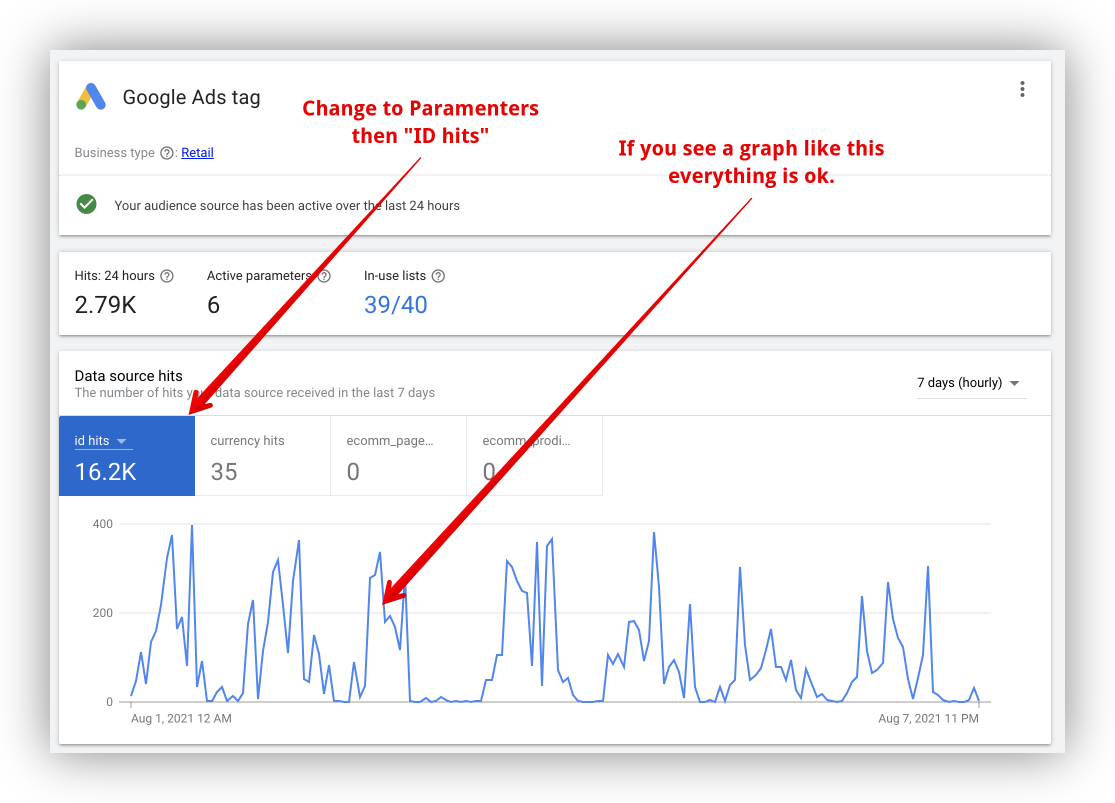
If you see incoming ID hits in the graph and still want to investigate the warning further, please ask Google support.
On the other hand, if you don't see ID hits in the graph, please continue reading.
It doesn't mean that Google Ads is always wrong when it comes to that warning. There are cases where the Google Ads warning can be right. Here is a list of possible causes:
- You've set the wrong conversion ID. Double-check and correct it if necessary.
- When setting up the remarketing audiences you've enabled
retailand thecustomaudience. The plugin can only send the signal for one or the other, not for both (which would not make sense anyway). So one of those verticals never receives an ID (usuallycustom), in which case you will see that warning show up regularly, but usually can dismiss it. Unfortunately thecustomvertical can not be turned off once enabled. - There is some reason that is blocking the remarketing script from sending events correctly, usually some kind of JavaScript optimization plugin.
Make sure that none of the above reasons are causing this problem.
The best way to check if the ID is being sent is to use the Google Tag Assistant
Here's how to check:
-
Open the Google Tag Assistant: tagassistant.google.com
-
In Google Tag Assistant instruct to open one of your product pages.
-
If the product page is a variable product, select the drop-down(s) to choose one variation.
-
Then switch back to the Google Tag Assistant tab.
-
In the middle pane click on dataLayer.
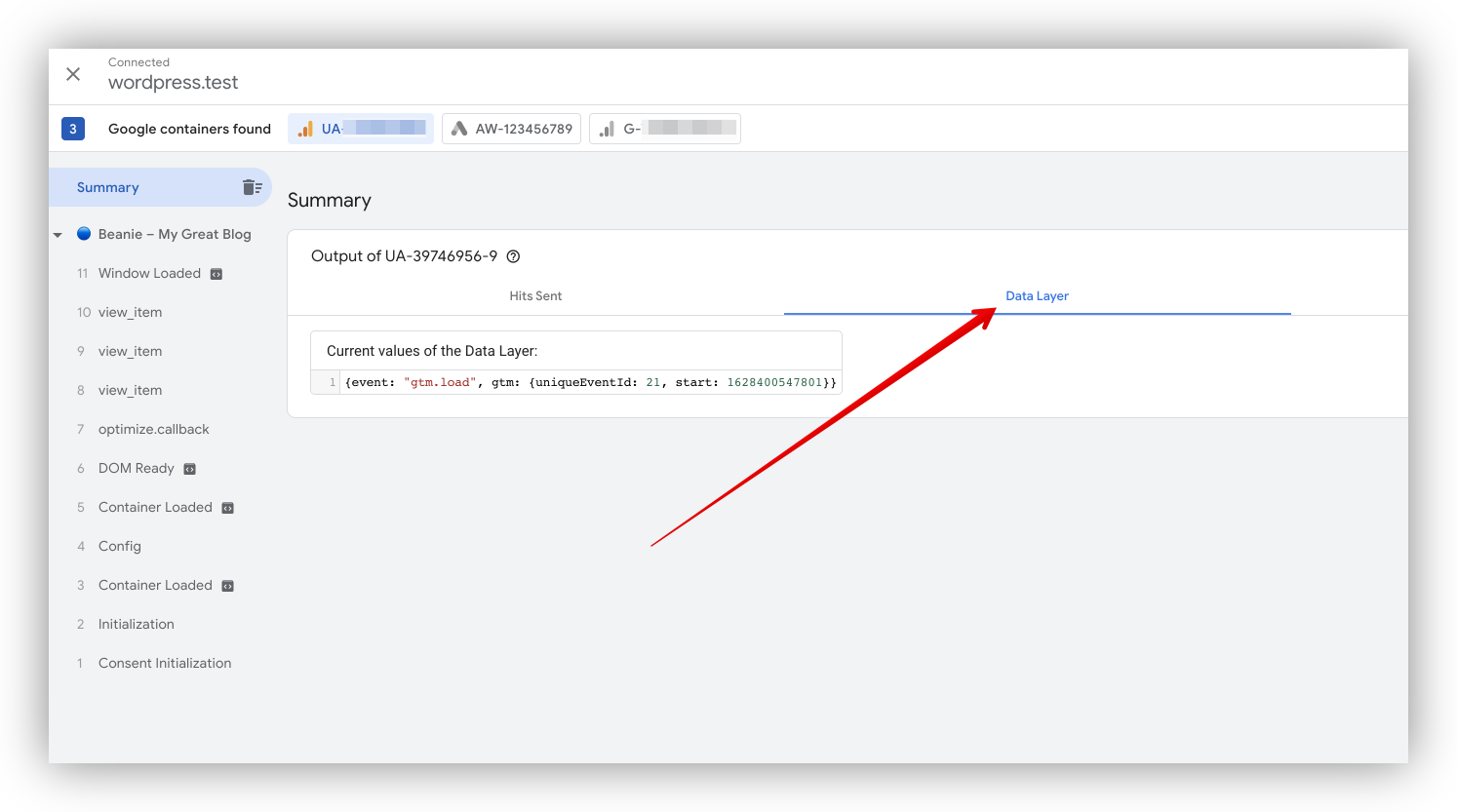
-
In the left sidebar click on the view_item event. If you've also set up Google Analytics, you will see several view_item events. Click through each of those until you see in the dataLayer the event that is sending events to your Google Ads conversion ID.
-
Once you find the correct event, check if the ID is being sent. If so, all is good. You have proof that the ID is being sent and the warning is wrong. You can dismiss it.
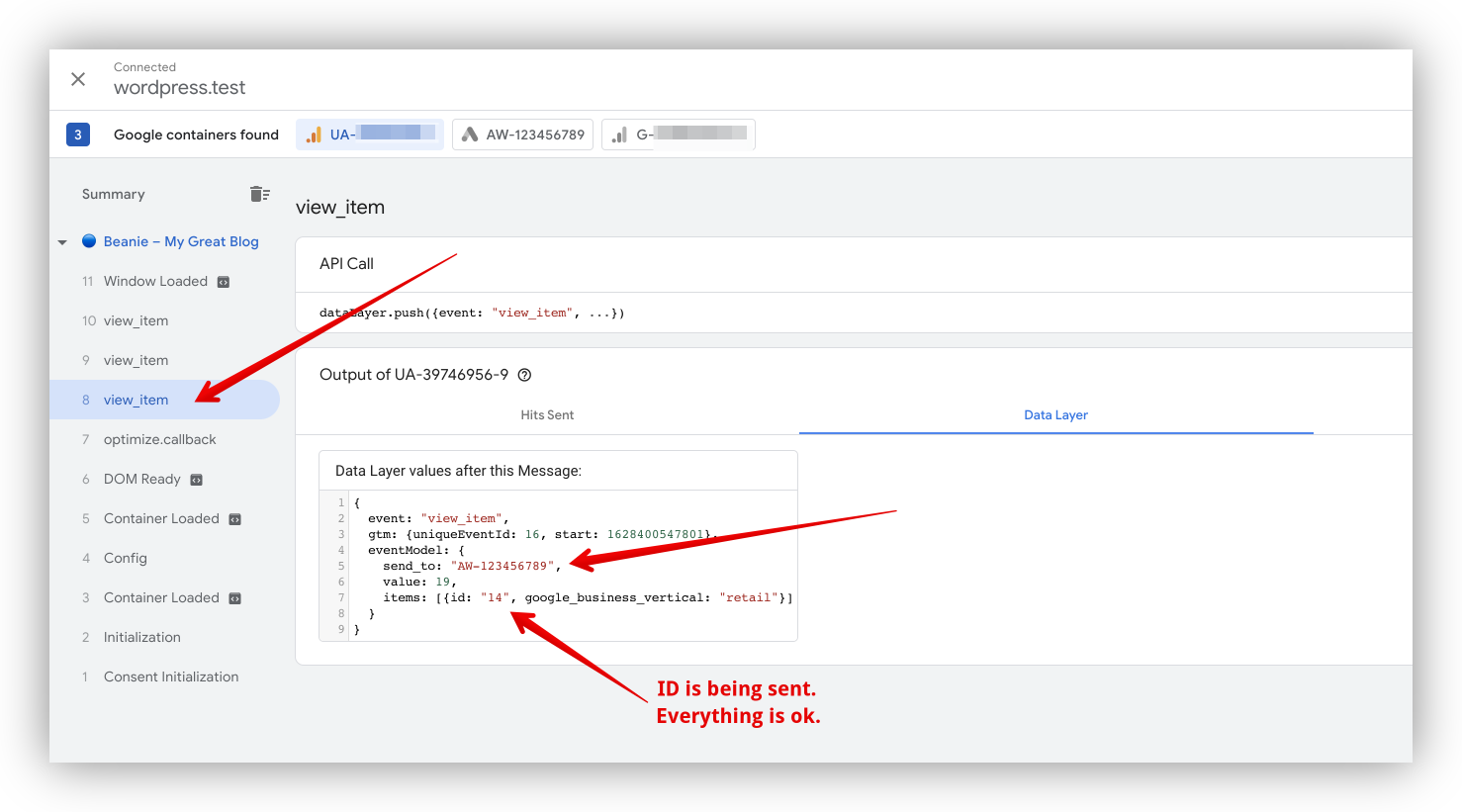 8. If you like you can also take those results and ask Google Ads support to fix that warning. (It would be a great help for us because we investigate way too many of those false positive warnings.)
The measured conversion value is too high in Google Ads
Situation: The measured conversion value is too high in Google Ads. When comparing the conversion value of each transaction in the Google Ads website report with the actual transaction value in WooCommerce, the Google Ads conversion value is higher than the actual transaction value.
Here's how that might look in the Google Ads website report. When comparing the conversion value with the actual transaction value in WooCommerce, the Google Ads conversion value is higher than the actual transaction value:
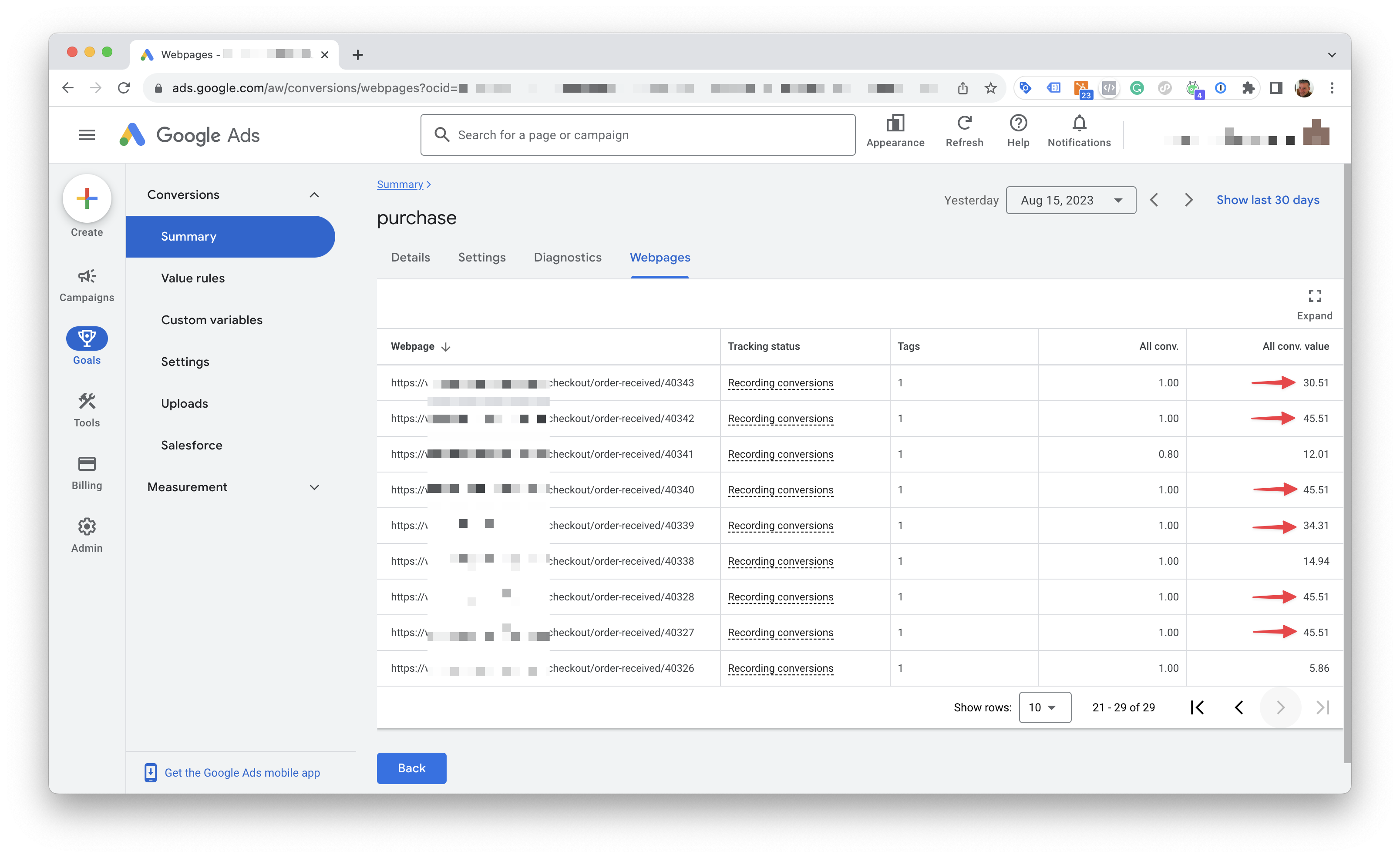
This can be explained by one or several of the following reasons:
-
You've enabled one or several campaigns to bid higher for new customers: In that case, Google Ads will increase the conversion value for new customers by the set value. This is a feature of Google Ads and not a bug.
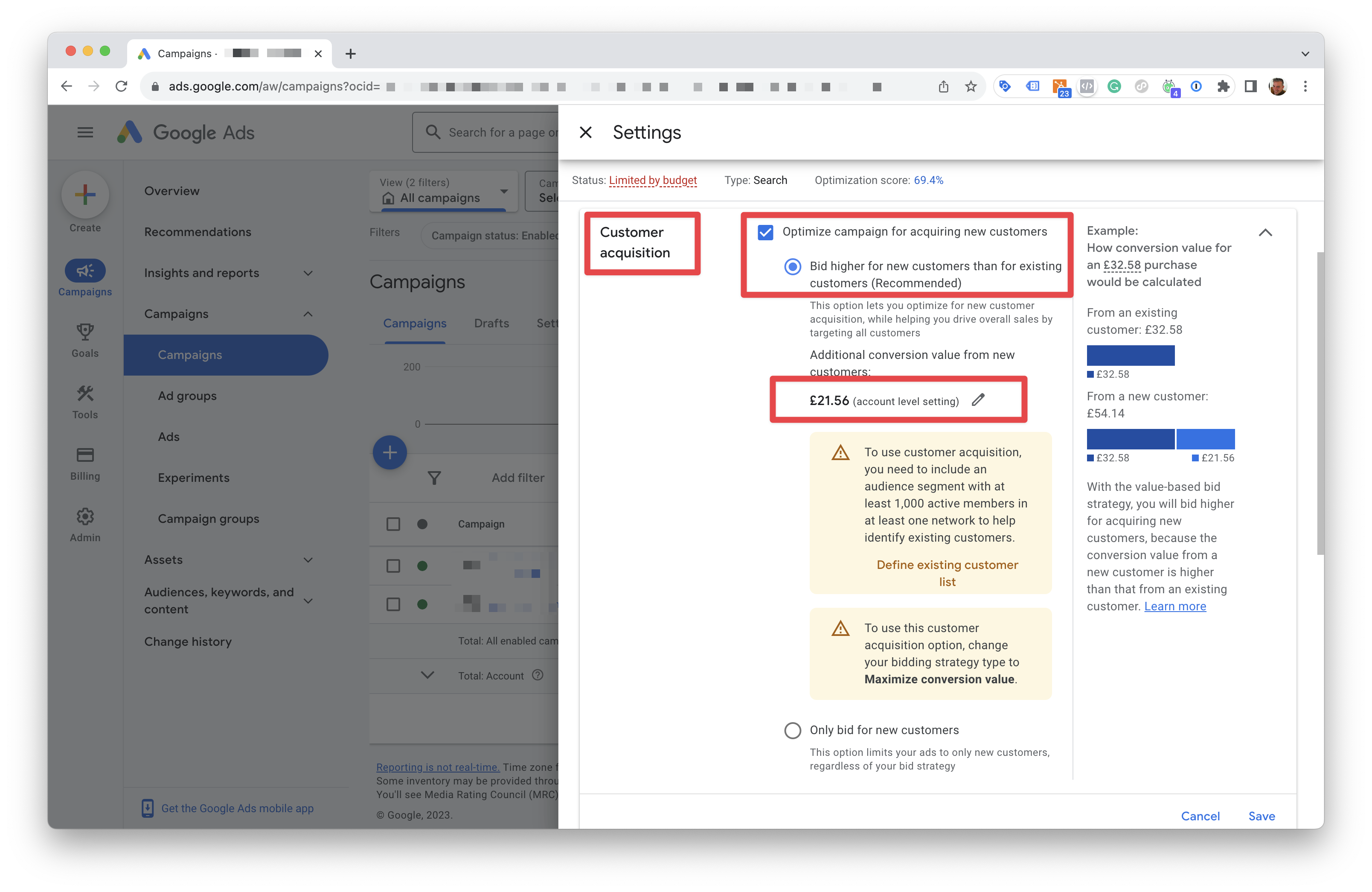
You might experience this only while using using the Pixel Manager. The reason is that the Pixel Manager is one of the few tracking code managers that is able to distinguish between new and existing customers and sends the
new_customerparameter to Google Ads as described in the Google Ads documentation. -
You are using the Pixel Manager conversion value filter to increase the conversion value: In that case, the conversion value will be increased by the conversion value determined by the filter. This is a feature of the Pixel Manager and not a bug. Read more about the conversion value filter here.
Tag not placed correctly warning
Google Ads, under certain circumstances, throws a warning that the tag is not placed correctly. Here are the most common reasons for this warning:
-
Pixel Manager Lazy Loading: The Pixel Manager pro version offers lazy loading of the tracking scripts. This is great to speed up the website. The tracking scripts get immediately loaded upon interaction with the website (mouse movement, scrolling, keyboard input, etc.). However, that also means that the tracking scripts are not loaded immediately when the Google bot crawls the website. This can cause the warning. If you see this warning, you can safely ignore it, or you can disable the lazy loading feature in the Pixel Manager under General → General via the Lazy-load the Pixel Manager toggle.
-
Third-party plugins: Some JavaScript optimization plugins can change the loading order of the Pixel Manager und thus cause the warning.
The warning itself is harmless. It is produced by a crawler that does not interact with the page, and it says nothing about real visitors, whose conversions are tracked either way because the cart and checkout pages always load the tracking immediately. If you see the warning but everything else is working fine, you can safely ignore it. We can't speak for third-party lazy loading plugins.
Lazy loading does have a real cost, but a different one: visitors who never interact with the page are not tracked at all. See Visitors who never interact.
If you however feel better without the warning, you can disable the lazy loading feature in the Pixel Manager under General → General via the Lazy-load the Pixel Manager toggle, or disable the third-party plugin that causes the warning.
The Google Ads conversion request returns an empty HTTP 400
Symptom: Purchases do not appear in Google Ads. On the order confirmation page, the conversion request to googleadservices.com/pagead/conversion/ (or google.com/pagead/1p-conversion/) returns 400 with an empty response (Content-Length: 0), while the other Google requests on the same page, such as ccm/collect and rmkt/collect, return 200.
Cause: Google's conversion endpoint refuses the conversion for this account and gives no reason. The tag itself fires correctly, which the successful neighboring requests prove. We have seen the same refusal for a conversion action created fresh in the same account, which places the cause in the Google Ads account, not on the shop.
How to confirm:
- Place a new test order and open the order confirmation page with DevTools open, as described under Validate your implementation. Use a new order for every test, because the Pixel Manager does not send the conversion a second time for an order it already tracked. To repeat a test on the same order, add the
nodedupeparameter described under Test order. - In the Network tab, filter for
pageadand click the conversion request. Check the status and the response headers. Also look at the request URL for empty or malformed parameter names, for example a parameter named,@,. Google's tag does not produce those. If you find one, it comes from a script on the site that modifies the request, not from Google. - Rule out the shop-side variables one at a time and place a new test order each time: turn off Tracking Pixels → Google (Ads & GA4) → Enhanced Conversions, clear Tracking Pixels → Google (Ads & GA4) → Merchant Center ID, and try the label of a new conversion action in Tracking Pixels → Google (Ads & GA4) → Conversion Label. Restore your settings afterwards.
Fix: If the empty 400 persists through all three tests, check two things in Google Ads before contacting support: that the conversion action is still enabled, and, if Enhanced Conversions is on, that the customer data terms have been accepted in Google Ads. If both are in order, only Google Ads support can clear it. Send them the conversion ID and label, the time of the test order, and the failed request itself rather than a screenshot: right-click it in the Network tab and choose Copy → Copy as cURL, or export the session as a HAR file. Both contain the full request URL and headers, including cookies, so share them only with support.
GA4
Unassigned traffic in GA4
GA4 may show transactions coming from unassigned traffic. The most common reason for this is when you're using the GA4 Measurement Protocol.
Using the GA4 Measurement Protocol has one main advantage. It tracks all transactions with the correct revenue value. You should see the revenue match the revenue in WooCommerce very closely.
The trade-off is channel attribution. The Measurement Protocol also captures orders from visitors whose browser-side GA4 tag never ran, for example because of an ad blocker, a consent banner, or a payment gateway redirect. Those orders arrive in GA4 with the correct revenue, but without a channel, so GA4 files them under Unassigned.
Why this happens
A Measurement Protocol event carries no traffic source of its own. GA4 attributes it by joining it to a session that the visitor's browser already created. The Pixel Manager reads the client_id from the _ga cookie and the session_id from the _ga_<measurement ID> cookie, and sends both along with the order.
- If the browser-side GA4 tag ran at some point during the visit, that session exists. GA4 joins the purchase to it, and the purchase inherits the channel of that session.
- If the browser-side GA4 tag never ran, there is no session to join to. GA4 receives a purchase that it cannot place in any channel, and reports it as Unassigned.
The lever that reduces it is making the browser-side tag more resilient, not changing what the server sends.
It is tempting to read the Unassigned share as "how often my GA4 tag is blocked". It is not. A large part of that bucket is usually not a tracking loss at all, and on a shop with a strict consent banner most of it is your consent setup working as designed. Work through the four populations below before you spend anything on chasing the number.
What Unassigned actually contains
A shop that checked all 310 of its Measurement Protocol purchases from a single day against GA4, order by order, found 74 of them reported as Unassigned. They split like this, and the shape is typical:
| Population | Share of that shop's Unassigned | Is it a tracking loss? |
|---|---|---|
| The visitor denied statistics consent, so the Google tag never ran | about 66% | No. This is the consent setup working. The revenue is still correct. |
| The medium matches no channel group rule | about 11% | No. See below. |
| The tag ran, but its hits never reached Google | about 8% | Yes, and this is the one worth chasing. |
| The session had genuinely gone quiet days before the order | about 1% | Yes, but rare. |
| Everything else, including sessions with no source | the remainder | Mixed. |
The medium with no channel group rule is the one that surprises people. GA4's default channel group matches a fixed set of utm_medium values. A session whose medium is something GA4 has no rule for, for example an email platform sending utm_medium=flow or a price comparison site sending utm_medium=product, has a perfectly good source and medium recorded. GA4 simply cannot file it under any channel, so it lands in Unassigned. Nothing was lost and no pixel failed.
Check this first, because it is free to fix and costs nothing to rule out:
- In GA4, open Reports → Acquisition → Traffic acquisition and switch the primary dimension from Session default channel group to Session source / medium.
- Filter to the Unassigned sessions.
- If they show a real source and medium, the problem is your channel group, not your tracking. Create a custom channel group under Admin → Data display → Channel groups with a rule for your mediums, or change the campaign URLs to use a medium GA4 recognises, such as
emailorcpc.
If the Unassigned sessions show (not set) for source and medium as well, then it really is one of the tracking causes, and the sections below apply.
Switch the logger to Debug for a day (see Logs). Every Measurement Protocol purchase then writes a line naming its transaction ID, the client ID it went out with and the state of its session, whether or not a warning fired. Look the transaction IDs up in GA4, subtract the ones a warning line explains, and what remains is the population none of the shop-side checks can see. On Pixel Manager Pro 1.69.0 and later that line also reports whether the browser's hits were seen reaching Google at all.
When no client_id could be read, the Pixel Manager sends a generated fallback that looks like anon_76413.1786483870. If you are investigating specific orders in the logs and want to know which identifier was actually sent, and why, see GA4 anon_* client IDs. That page also explains why an HTTP 204 response and a set wpm_google_analytics_4_mp_purchase_hit flag do not prove that GA4 attributed the purchase.
Why the GCLID cannot be sent instead
A common assumption is that the Pixel Manager could attach the Google Ads click ID (the GCLID, stored in the _gcl_aw cookie) to the Measurement Protocol event through a parameter such as session_traffic_source_last_click.google_ads_campaign.gclid, and that GA4 would then attribute the purchase to Paid Search.
That is not possible. session_traffic_source_last_click is a field in GA4's BigQuery export and reporting schema, which means it is something GA4 writes as the result of its own attribution. It is not a parameter that the Measurement Protocol accepts on incoming events. The Measurement Protocol reference documents no traffic source or click ID input at all, and Google's documented remedy for unattributed server-side events is the one described above: send the session_id of the visitor's existing session.
There is consequently no setting for this in the Pixel Manager, no filter to enable it, and no workaround through a WooCommerce hook. Adding the GCLID to the payload would simply have no effect, because GA4 ignores the parameter.
Your Google Ads conversions are not affected by any of this. The Pixel Manager stores the click ID on the order and uses it for Google Ads attribution independently of GA4's channel reports. An order that shows up as Unassigned in GA4 can still be attributed correctly in Google Ads.
What you can do
- Check your channel group first. As described above, a medium GA4 has no rule for lands in Unassigned with its source fully intact. This costs nothing to check and is often a large share of the bucket.
- Make the browser-side GA4 tag harder to block. Since every attributed purchase needs a browser session, anything that helps the browser-side tag run also reduces Unassigned. Google Tag Gateway for advertisers serves the Google tag from your own domain and is the most effective measure here.
- Add your payment provider to GA4's unwanted referrals. A buyer returning from an off-site payment page can start a fresh session credited to the payment provider, which costs the original source on exactly the gateways that already track worst. List the exact domains buyers return from, including the ones that differ from the provider's main domain.
- Check your consent setup. If visitors are not granting statistics consent, the browser-side tag cannot run and those purchases cannot be attributed.
- Accept the trade-off. Unassigned purchases still carry the correct revenue. Your totals stay accurate, only the channel breakdown is incomplete.
- Or turn the Measurement Protocol off. You can disable it in the Pixel Manager under Tracking Pixels → Google (Ads & GA4) by clearing the API Secret (for Measurement Protocol) field. Keep in mind that this also gives up the accurate transaction and revenue tracking, and GA4 will then report fewer orders than WooCommerce.
It is worth mentioning that there are other limitations using the GA4 Measurement Protocol. Some of the limitations are listed in the following support article: GA4 Measurement Protocol limitations
GA4 shows "(not set)" as the landing page
Symptom: The landing page report in GA4 has a large (not set) row.
Cause: GA4 takes the landing page from the first page_view of a session. A session that starts with any other event has no landing page. Three causes produce most of these sessions:
- Another tag sending into the same GA4 property. A second Google tag, a Google Tag Manager container, another plugin, or a third-party script that sends events such as
scroll,user_engagementor its own custom events with your measurement ID. Each time such an event arrives before apage_viewin a session, it opens a session without a landing page. - Measurement Protocol purchases that GA4 could not join to a browser session, as described under Unassigned traffic in GA4.
- A Pixel Manager version before 1.69.3 with a suppressed GA4 ID. When the shop's server could not reach Google, or Google refused to serve the
G-ID on its own, those versions skipped the GA4 configuration while the ecommerce events still went out. That produced sessions without page views. Updating the Pixel Manager fixes it, see Connect an existing Google Analytics 4 property.
How to tell them apart:
- In GA4, open Explore → Free form.
- Add the dimensions Landing page + query string and Event name, and the metrics Sessions, Key events and Total revenue.
- Filter to the (not set) landing page and break it down by event name.
If the row consists mostly of purchase events that carry revenue, it is the Measurement Protocol population, and the Unassigned entry above applies. If it carries many sessions with other event names and little or no revenue, a second tag is sending into the property, or, on a Pixel Manager version before 1.69.3, GA4 ran without its configuration.
GA4 audience triggers log their own events too. We have not confirmed that they open sessions without a landing page, so treat this as a hypothesis to test: if the number of users in the (not set) row roughly matches the users of an audience trigger, pause that trigger for a while and see whether the row shrinks.
To find that tag, open DevTools on your shop, filter the Network tab for collect?v=2, and look for requests with your measurement ID (tid=G-…) whose event name (en=) is not page_view. The Initiator column shows which script sent them. With Google Tag Gateway for advertisers active, GA4 requests go to your shop's own domain instead of a Google domain, so filter the Network tab for collect rather than for a Google host name.
Fix: Remove the second tag, or point it at a different GA4 property, so that the Pixel Manager is the only sender for this measurement ID. If the shop runs a Pixel Manager version before 1.69.3, update it.
A refund deducts no revenue in GA4
Two very different situations produce this complaint, and the first step is to tell them apart: either the refund never left your server, or it did leave and you are looking for it in the wrong place.
An empty browser console is not the symptom
Refunds are the one e-commerce event the Pixel Manager never tracks in the browser. A refund is created in the WooCommerce admin, with no shop page open, so nothing client-side can fire. The refund event is built in PHP and sent from your server to Google Analytics over the Measurement Protocol.
The Console Logger therefore stays silent when you refund an order, and the browser's network tab shows no request. That is the designed behaviour, not a fault, and it is no evidence that anything is broken. To see the actual request, use the plugin log as described under Verifying that a refund was sent.
If the log shows no refund request at all
Work through these in order:
- The GA4 API secret is missing. Refunds are sent exclusively over the Measurement Protocol. Without an API secret there is no refund reporting at all, no matter what else is configured. Check Tracking Pixels → Google (Ads & GA4) → API Secret and see GA4 API secret.
- The order's purchase event was never sent. The Pixel Manager deliberately withholds the refund when Google Analytics never received the purchase, so it is not asked to reverse revenue it never recorded. See No refund is sent for a purchase Google Analytics never received.
- Refund tracking was switched off. Check your theme's
functions.phpand any snippet plugin for thepmw_google_analytics_refund_trackingfilter, and for server-side event filters that block therefundevent. - This is the Pro version, isn't it? Measurement Protocol tracking, and with it refund reporting, is a Pro feature.
If the refund request goes out but the amount stays at 0
Then you are on an outdated release. Refunds have had two revenue-related fixes:
| Version | What it fixed |
|---|---|
| 1.59.3 | Refund events carried no value and no currency, so GA4 recorded the event but deducted nothing. Below this version, every refund deducts 0. |
| 1.66.0 | An order refunded in several steps reversed more than was refunded: the event completing the order carried the whole order total on top of the partial refunds already reported. |
Updating to the current release is the fix in both cases. Refunds that were already sent are not corrected retroactively, because Google Analytics data cannot be rewritten.
The reversed revenue is filed under "(not set)" in the attribution reports, because a refund carries no session. The correction still applies at property level. See Why refunds are reported under "(not set)".

