Microsoft Advertising (Bing Ads)
This is a pro feature. Get the pro version here
Setting up the UET tag
Microsoft Ads requires setting up a UET tag and a purchase conversion separately. You can skip this step, if you already have an active UET tag set up. We only need one active UET tag.
-
Log into your Microsoft Advertising account.
-
In the menu click > Tools > Conversion tracking > UET tag.
-
Click > create UET tag.
-
Give it some meaningful name like
UET tag 1. -
Save it.
-
In the next window Microsoft asks how you want to set up tagging. Choose
Install the tag yourself. -
Then click
nextuntil the new tag shows up in the UET tag list. -
Copy that
UET tag ID. In the Pixel Manager, open Tracking Pixels → Microsoft, paste it into the UET Tag ID field, and save.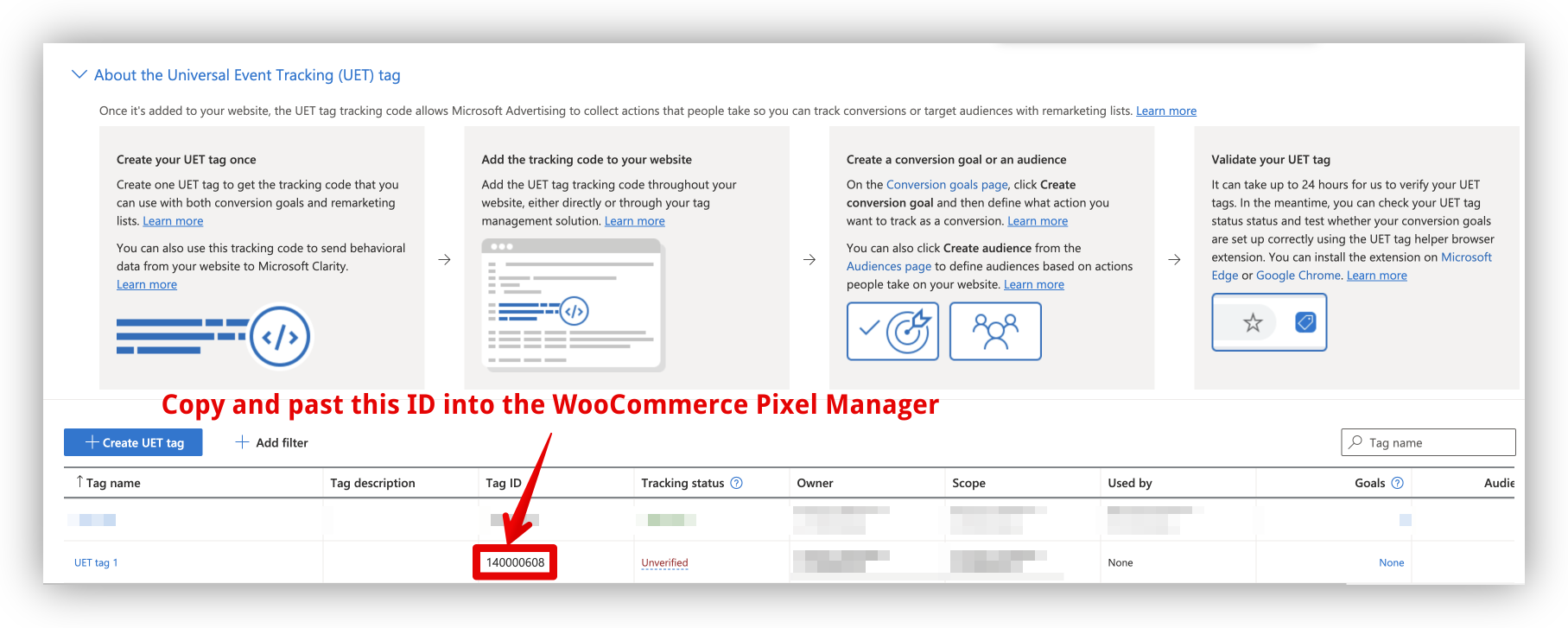
Setting up the purchase conversion
We will set up a new purchase conversion goal, using a purchase event. It is different in the way, that we don't use a destination URL (like in most setup guides), but by using a purchase event. It is much less error-prone and works equally well.
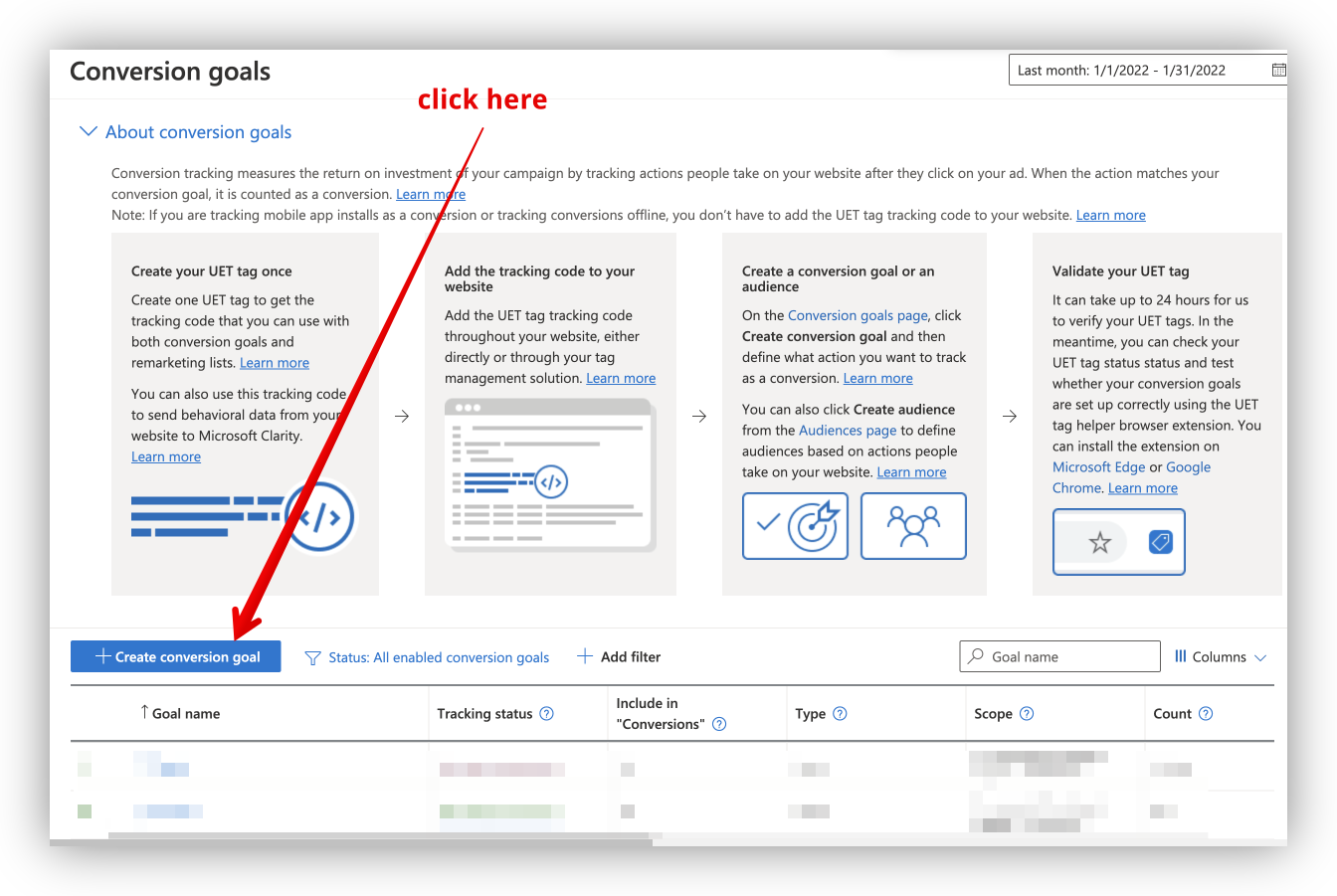
- In the menu click > Tools > Conversion tracking > Conversion goals.
- Click > Create conversion goal.
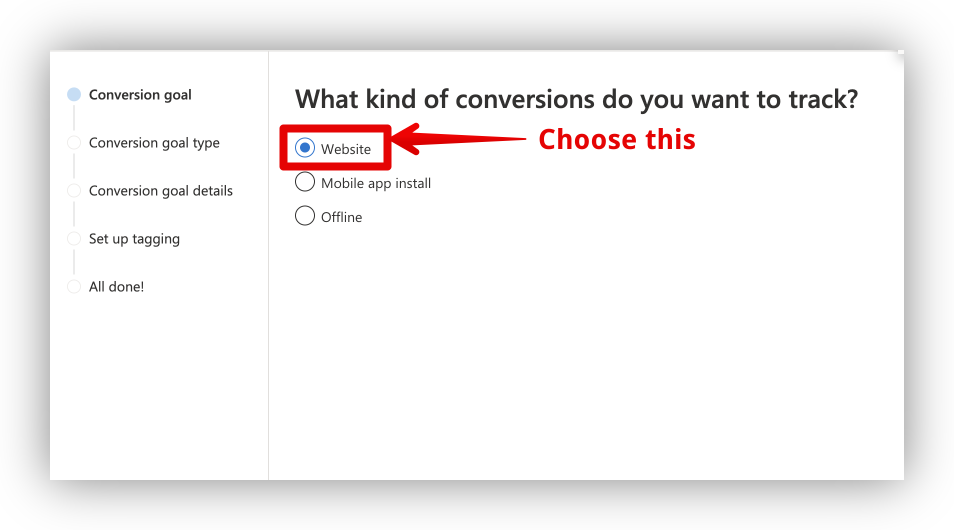
- What kind of conversions do you want to track? >
Website
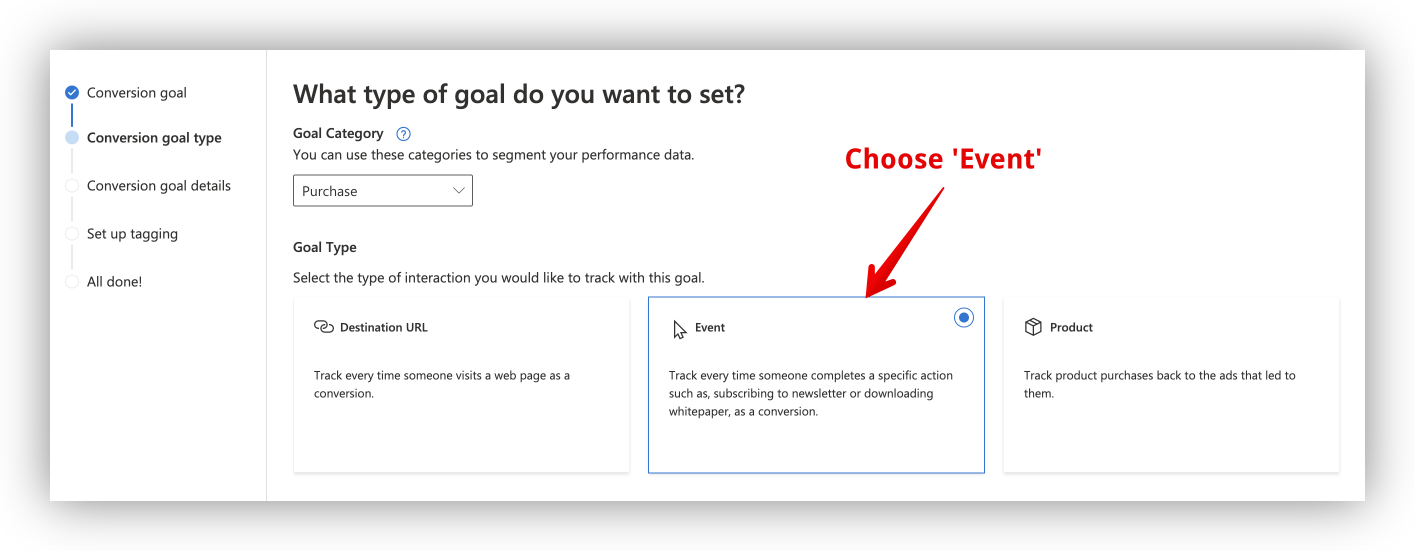
- What type of goal do you want to set? >
Purchase
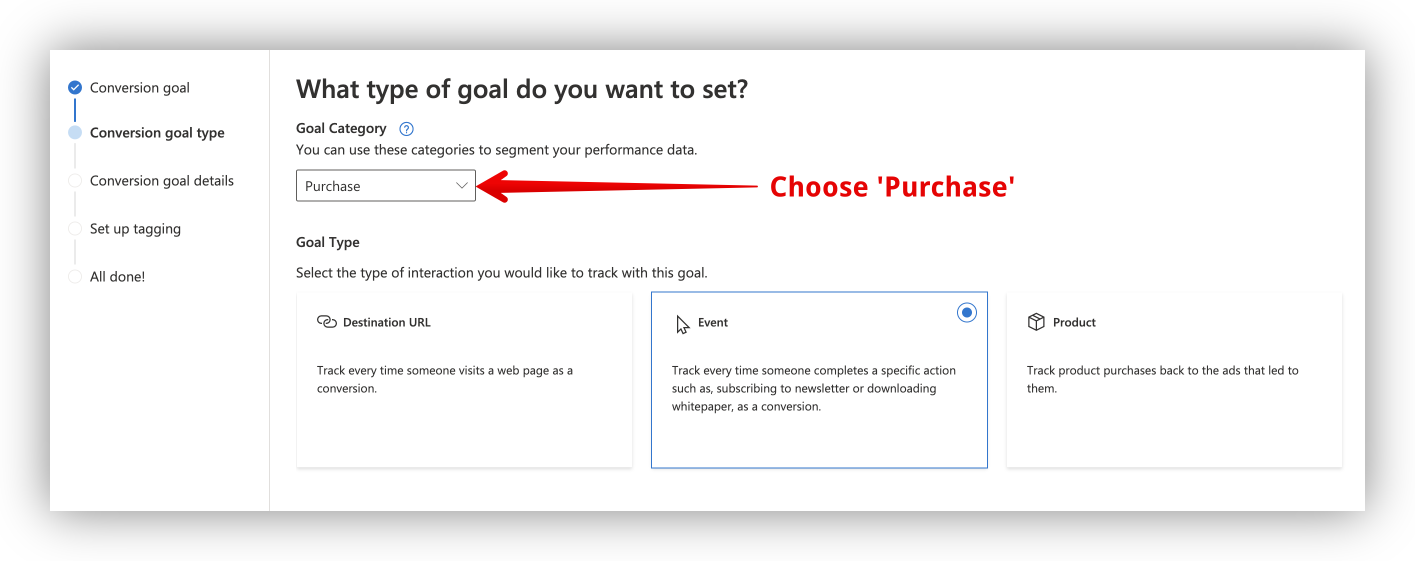
- Goal Type >
Event
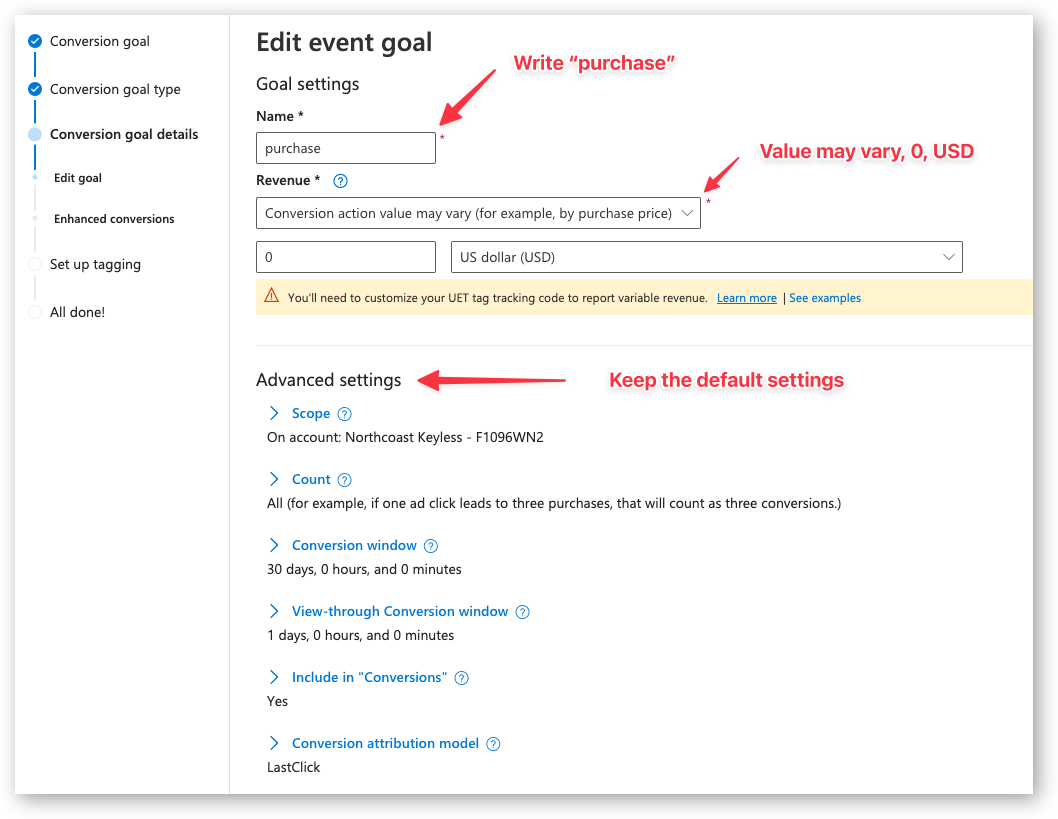
- Edit event goal
- Name:
purchase - Revenue:
Conversion action value may vary0USD(or the currency of your shop)
Keep the default settings for the advanced settings.
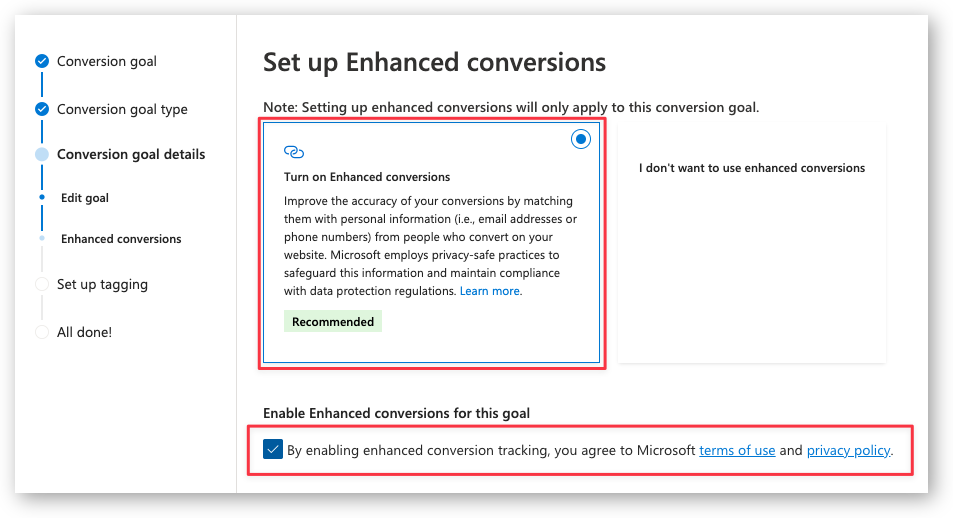
- Enhanced Conversions
-
Choose
Turn on Enhanced Conversionsand check the box if you want to pass the email and phone number to Microsoft Ads.In the Pixel Manager, open Tracking Pixels → Microsoft and turn on Enhanced Conversions, then save.
This is optional.
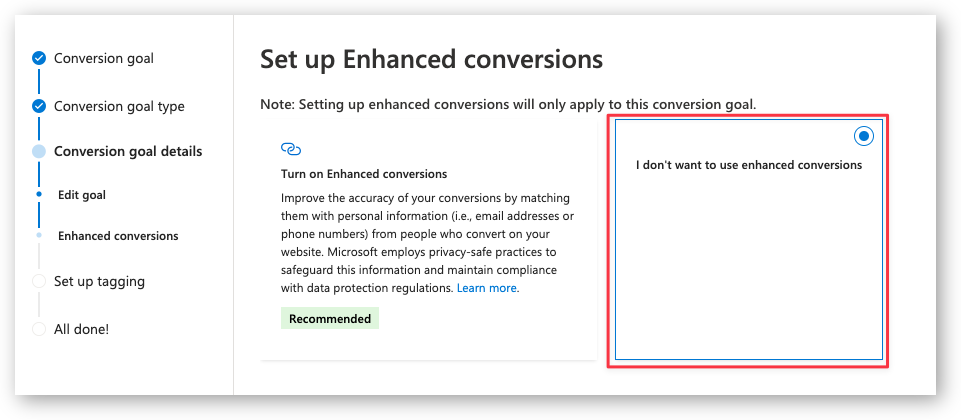
- Choose
I don't want to turn on Enhanced Conversionsif you don't want to pass the email and phone number to Microsoft Ads.
-
Set up tagging
- Choose the tag that you've set up earlier.
- Choose >
Yes, the UET tag was already installed on all website pages when you created another conversion goal or audience list. - Click Save and next
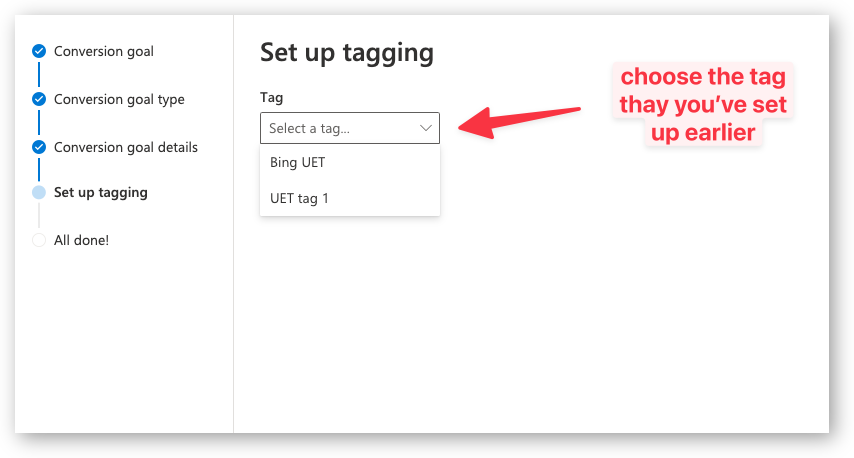
- Choose Manual installation
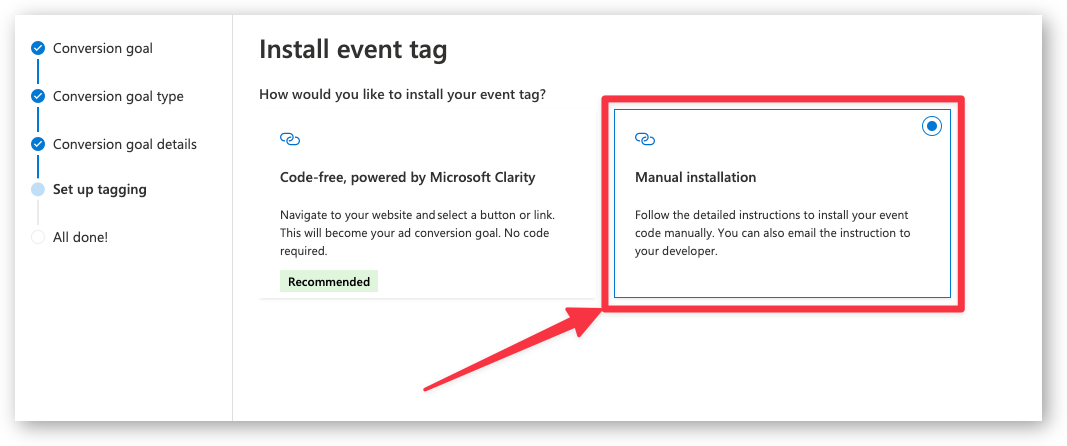
-
Custom event parameters
- Set equals to and purchase
- Set track event on inline action
- Click Save and next
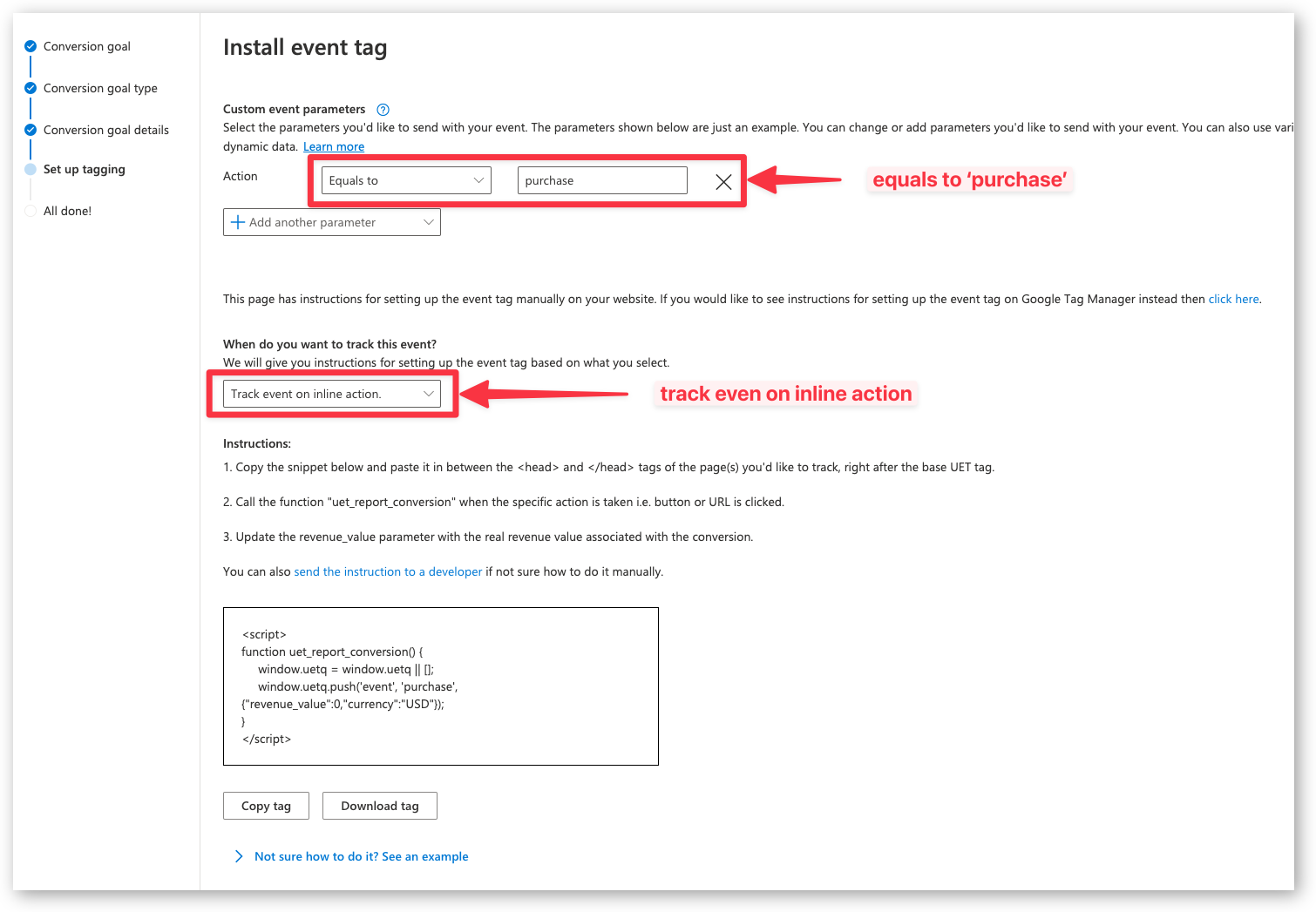
- Done
Enhanced Conversions
This is a pro feature. Get the pro version here
Enhanced Conversions for Microsoft Ads improves conversion attribution accuracy by sending hashed first-party customer data (such as email addresses) to Microsoft. This helps Microsoft match conversions more reliably, especially in cross-device and cookieless scenarios.
Benefits
- Better attribution: Match conversions that would otherwise be lost due to cookie restrictions or cross-device journeys.
- Privacy-safe: Customer data is hashed using SHA-256 before being sent to Microsoft.
- Improved bidding: More accurate conversion data leads to better automated bidding performance.
How to Enable
- In Microsoft Ads, when creating or editing a conversion goal, select Turn on Enhanced Conversions (see step 7 in the setup guide above).
- In the Pixel Manager, open Tracking Pixels → Microsoft.
- Turn on Enhanced Conversions.
- Save the settings.
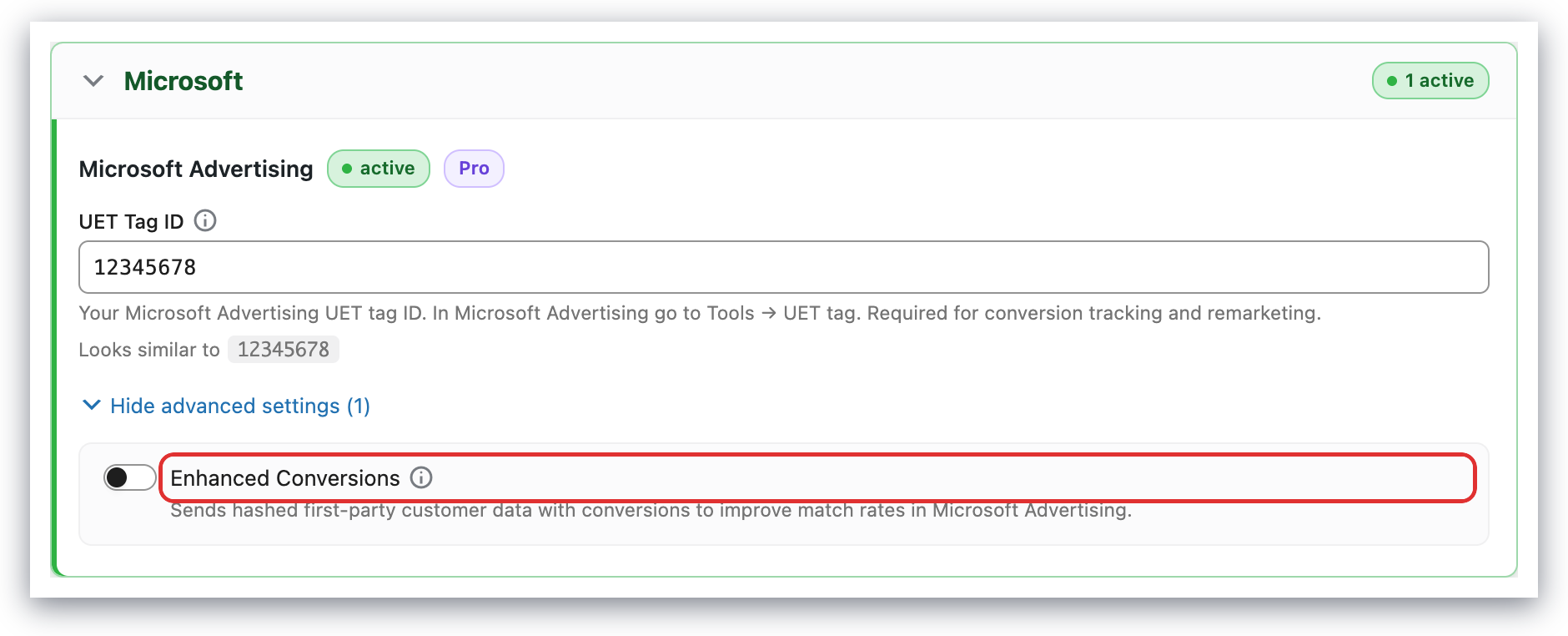
Once enabled, the Pixel Manager will automatically send hashed customer data (email, phone number if available) with conversion events to improve attribution accuracy.
Supported Events
Here's a list of supported events.

