Logs
The Pixel Manager has an internal logger that logs messages of different levels to a file. They are here to help understand what is going on inside the Pixel Manager. The range is from critical errors to informational messages.
Use it with caution, as it can generate a lot of data.
Prerequisites
From version 1.69.3 the Pixel Manager writes its log whenever its logger is on, regardless of WooCommerce's Enable logging and Level threshold settings. Only the log storage still matters: with database storage, the entries are only visible under WooCommerce → Status → Logs, not through the Pixel Manager's view and download buttons.
On versions before 1.69.3, the Pixel Manager writes through WooCommerce's own logger, so WooCommerce's log settings decide whether anything is stored. If the log stays empty although the logger is on, check these under WooCommerce → Status → Logs → Settings:
- Logger: Enable logging must be checked.
- Level threshold: set it to None, which stores all levels. A higher threshold silently drops the Pixel Manager's lower-level messages, for example everything below Error.
- Log storage: choose File system (default). The Pixel Manager's view and download buttons read the log files, so logs stored in the database do not show up there.
If a setting is greyed out, it is fixed by the WC_LOG_THRESHOLD or WC_LOG_HANDLER constant in wp-config.php. Ask whoever manages that file to change or remove it.
Logger Activation
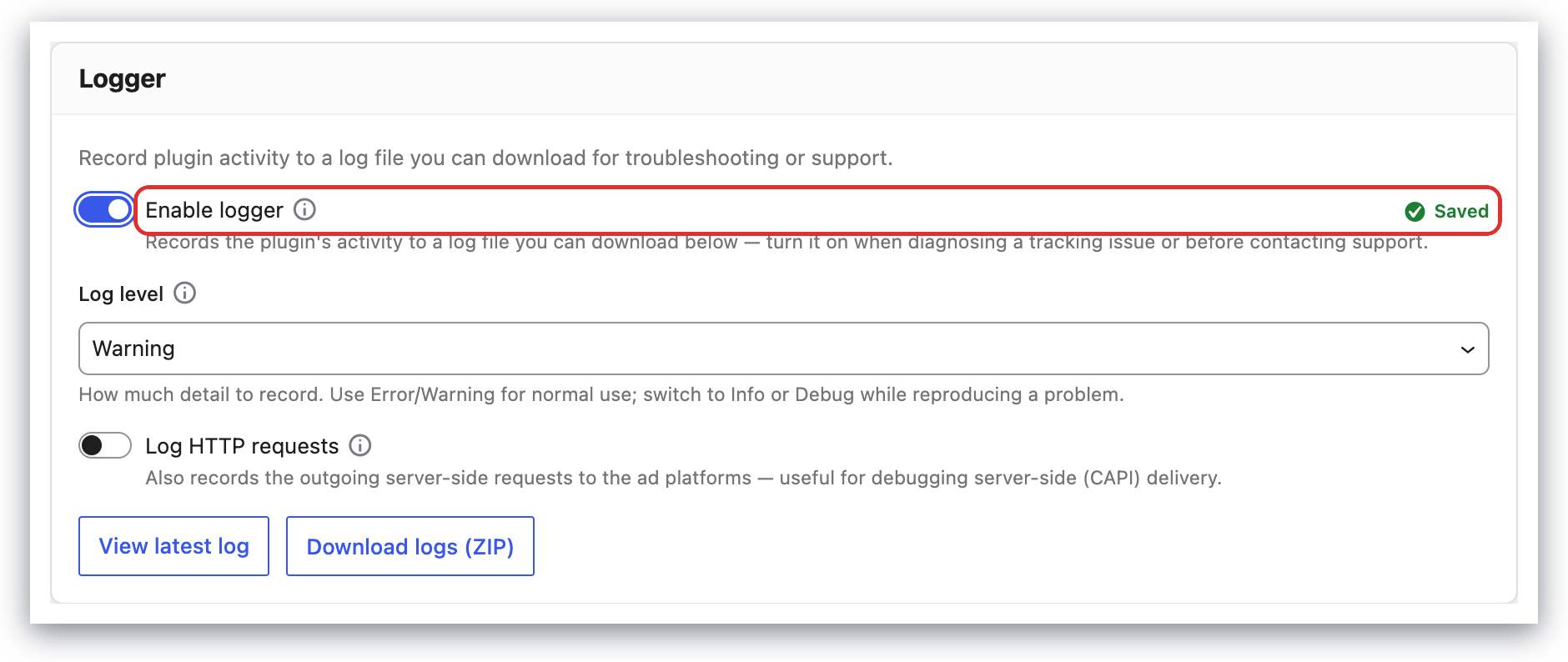
In the Pixel Manager, open Support → Logger, turn on Enable logger, and save.
Log Levels
The logger has 5 levels of logging:
- Critical: Critical errors that may crash WordPress.
- Error: Errors that prevent the Pixel Manager from working properly.
- Warning (default): Warnings that should be addressed, but do not prevent the Pixel Manager from working properly.
- Info: Information about the Pixel Manager's activity that is good to know.
- Debug: Debug information about the Pixel Manager's activity. Even more details about the internal activity are logged. Use it only when debugging as it can generate a lot of data.

Log HTTP Requests
When the Log HTTP requests checkbox is checked, the logger will log detailed information about HTTP requests made by the Pixel Manager. This is useful to debug issues with the Pixel Manager's communication with external servers.
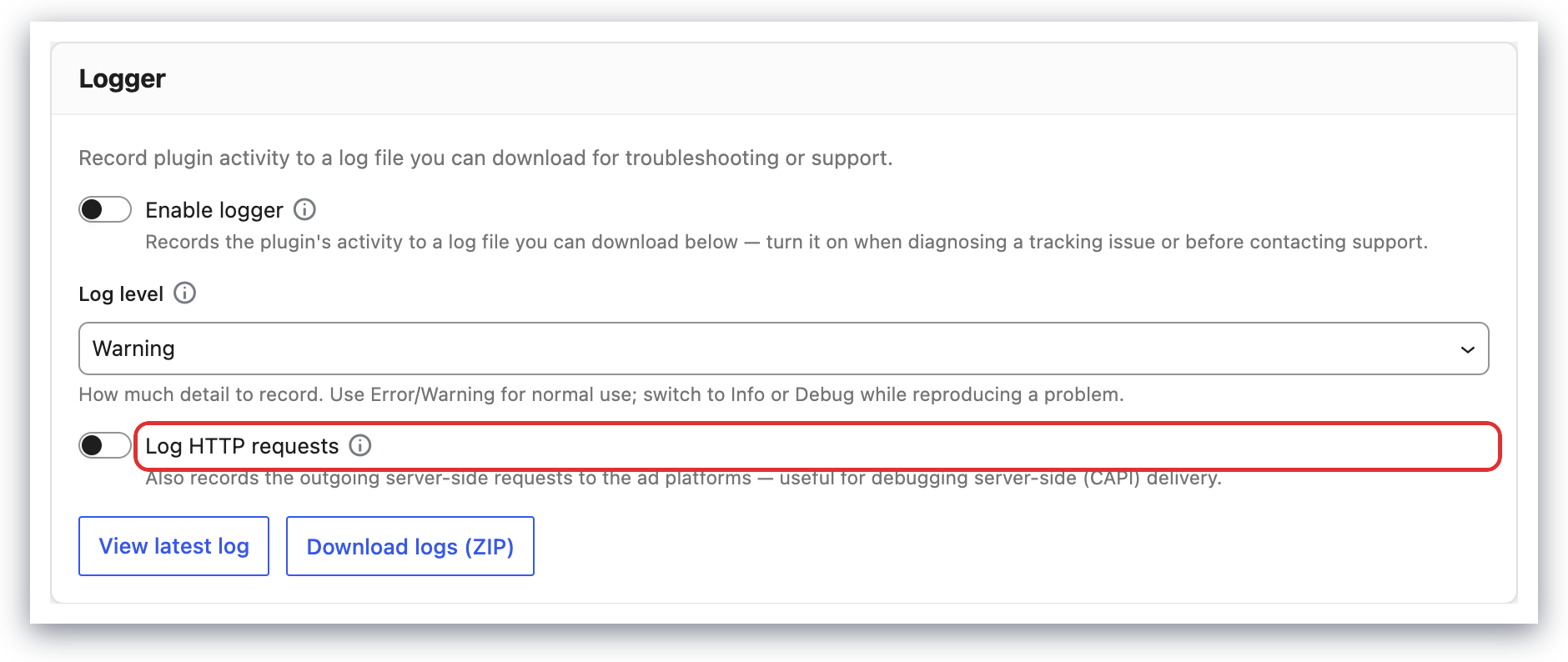
Enabling logging of HTTP requests switches web requests from asynchronous (faster, non-blocking) to synchronous (slower, blocking) to record the server responses. Server responses coming from synchronous web requests can be analyzed in depth, but also use more server resources. It's only meant for troubleshooting and will turn off automatically after 3 hours to limit the impact on the server. You can extend the duration by using the following filter:
add_filter( 'pmw_http_request_log_auto_off_delay', function() {
    return 6 * HOUR_IN_SECONDS;
} );
Accessing Log Files
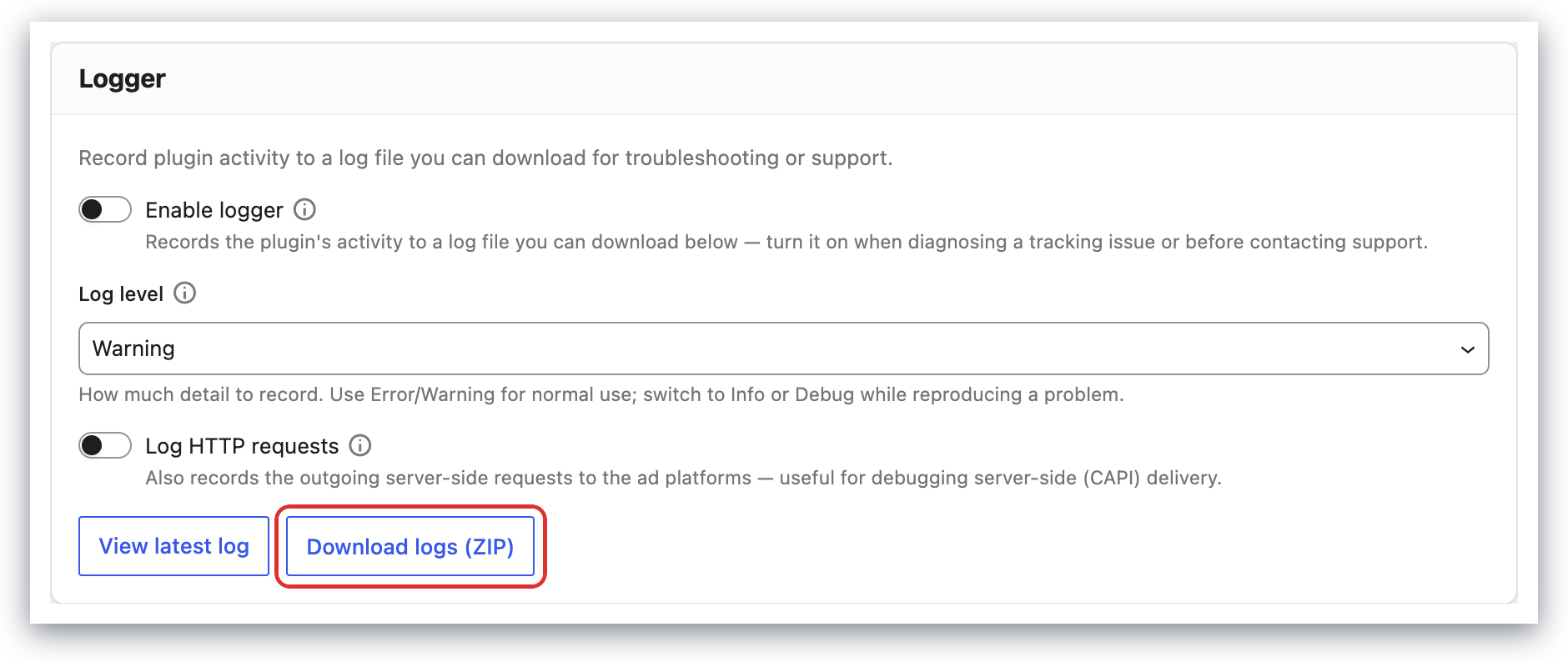
For simple access to the log files, the Pixel Manager provides buttons to view and download the log files. The buttons are only active when logs are available.
If you have to file a support request, use the Copy log file links button to copy the links of the log files to the clipboard. Then paste them in your support request. It will allow the support team to access the log files directly.
The logs are saved in the regular WooCommerce logs directory: /wp-content/uploads/wc-logs/. The file names are prefixed with pmw-.