Google Ads Finally Has a Conversions API: Server-Side Purchase Tracking for WooCommerce

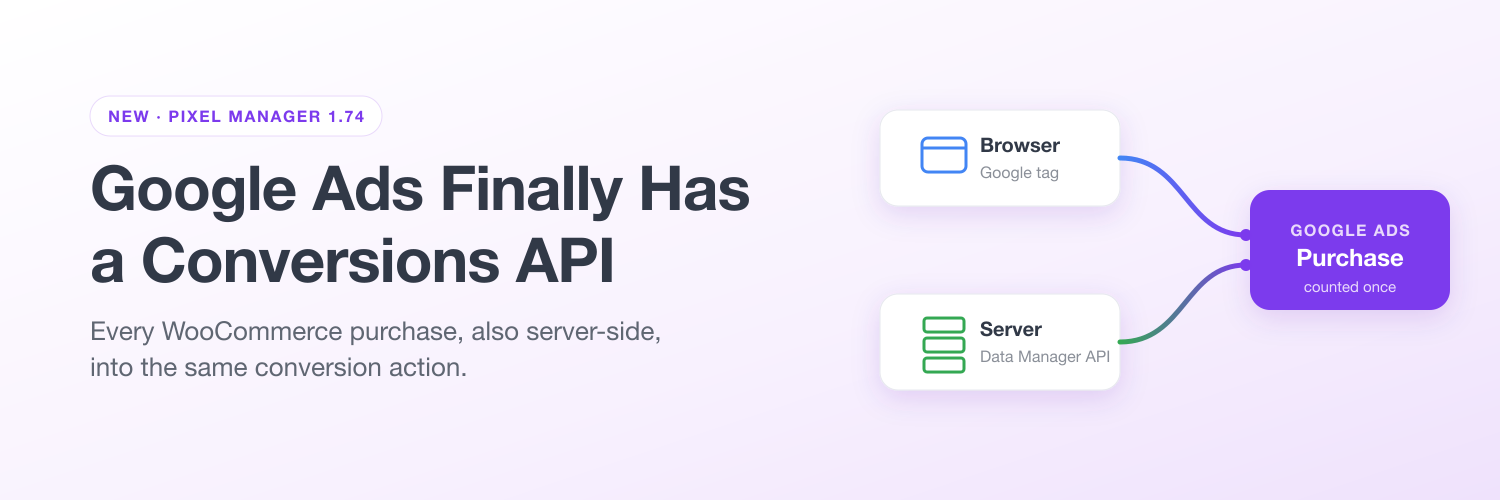
Meta advertisers have had the Conversions API for years. Every purchase reaches Meta twice, once from the visitor's browser and once from your server, and Meta merges the two into one conversion. If the browser misses a sale, the server still reports it.
Google Ads never had that for web purchases. As of version 1.74.0, the Pixel Manager closes that gap: every purchase is uploaded to Google Ads from your server, into the same conversion action your Google tag already uses, and refunds correct themselves.
TL;DR
- Server-side purchase upload (Pro): every paid order is also sent to Google Ads through Google's new Data Manager API, into the same conversion action as your tag. Google deduplicates by order number, so nothing is counted twice.
- Refunds correct themselves (Pro): full refunds and cancellations retract the conversion, partial refunds lower its value, and payments that fail days later are retracted too. No CSV feed, no scheduled upload.
- One-click Google setup (free): connect your Google account once, then pick or create your Google Ads conversion action and GA4 data stream from a list.
- See your own gap (free): the Google card shows how many of your recent orders never reached a tracked confirmation page.
- Available from version 1.74.0. Google has reviewed and verified the connection.
What Was Missing Until Now
Google Ads has accepted server-side conversions for a long time, through offline conversion imports keyed on the click ID. But an imported conversion had to live in its own import conversion action, separate from the website action your Google tag fires.
That left you with an awkward choice. Either you reported each purchase in two conversion actions and had to keep one of them out of bidding so nothing was counted twice, or you gave up the browser tag's strengths and relied on the import alone. Neither is what you want: one purchase action that counts every sale exactly once.
Google's Data Manager API changes that. It accepts website conversions from your server into the same conversion action your tag reports to, and deduplicates the two sources by transaction ID. The Pixel Manager sends the WooCommerce order number as the transaction ID on both sides, so the browser and the server each report the purchase and Google keeps one.
Where Browser Tracking Loses Sales
Browser tracking can only report a purchase when the customer's browser loads your thank-you page and lets the Google tag run. On a normal day, that fails more often than most shops expect:
- Redirect payments. Many payment methods send the customer away to finish paying: to a payment page, a bank, or an app on their phone. Think of Mollie with iDEAL or Bancontact, Klarna, PayPal, or a banking app. The payment goes through, but the customer closes the tab or stays in the app instead of returning to your shop. The order exists in WooCommerce, and Google Ads never hears about it.
- Ad blockers and privacy browsers. The thank-you page loads, but the Google tag is blocked before it can send anything.
- Closed tabs and dropped connections. The customer leaves while the payment provider is still redirecting back.
Every one of those sales came from somewhere, often from an ad. When Google Ads does not see it, Smart Bidding concludes the campaign performed worse than it did and holds back budget from exactly the ads that sell.
How the Server-Side Upload Works
Once the upload is active, the Pixel Manager sends each order to Google Ads from your server as soon as it reaches a paid status. It does not depend on the customer's browser at all. Each upload carries:
- The order number as transaction ID, the same value the Google tag sends, which is what makes deduplication work.
- Value and currency, plus the purchased items for Conversions with Cart Data when you have a Merchant Center ID set.
- The Google click ID (gclid, gbraid or wbraid), captured on the landing page and stored with the order, so it is still there when the order is paid days later.
- Hashed customer data, the same data Enhanced Conversions uses, so Google can match purchases without a click ID.
- The visitor's consent state. The upload respects the visitor's consent choice like every other server-side purchase event in the Pixel Manager, and tells Google which consent applied.
An order with neither a click ID nor customer data cannot be matched to an ad, so it is not uploaded. Uploads that Google temporarily rejects, whether it is busy or has hit your daily allowance, are retried automatically. Because Google deduplicates by order number, a retry can never count a sale twice.
Refunds That Correct Themselves
Reporting a sale is half the job. The other half is telling Google Ads when that sale did not stick. Through the same Google connection, the Pixel Manager now sends conversion adjustments on its own:
| What happens in WooCommerce | What Google Ads gets |
|---|---|
| Full refund or cancellation | The conversion is retracted |
| Partial refund | The conversion value is lowered to what you kept |
| Payment fails days after checkout | The conversion is retracted after a two-day grace period, in case the customer pays again |
| A refund is deleted again | The original value is restored |
Until now, conversion adjustments meant generating a CSV feed and scheduling Google Ads to fetch it. That still works, but Google is moving scheduled uploads into its Data manager, and in some accounts the old schedule option is already gone. With the connection, there is nothing to schedule: Google Ads hears about each change right away, and your ROAS shows the money you actually kept. That matters most in the weeks after a big sale, when returns pile up.
One-Click Google Setup, Free for Everyone
Setting up Google tracking used to start with a scavenger hunt: find the conversion ID, find the conversion label, find the GA4 measurement ID, copy each one over and hope nothing got truncated. The new Google setup assistant on the Google card replaces that:
- Click Connect Google account and sign in with the Google account that has access to your Google Ads and GA4 accounts.
- Pick your Google Ads account and either choose your existing purchase conversion action or create a new one. The conversion ID and label are filled in for you.
- Pick your GA4 property and web data stream, or create them. The measurement ID is filled in for you.
The assistant is free in every version of the Pixel Manager. If you already set your IDs by hand, nothing changes: the manual fields still work and always win.
On Pro, picking the conversion action also switches on the server-side upload. There is no extra toggle.
Two details worth knowing:
- Your Google credentials never touch your shop. The connection runs through SweetCode's connection service, which stores the Google access encrypted. Your WordPress site only holds its own site token.
- Google asks for each permission separately, with a checkbox for Google Ads, Google Analytics and the server-side upload. If you untick one, the connection still works, but that feature does not. The assistant shows each permission as allowed or not, explains what stops working without it, and offers a reconnect that asks again.
Seeing It Work
The Google card shows the upload's status, the conversion action it uploads into, and the result of the most recent upload, including whether Google matched it on the click ID or on customer data. A Send test upload button lets Google validate your setup on a real order without recording a conversion.
After a few days of orders, the card also tells you how many orders were uploaded and how many of them the browser tag had missed. Those are the sales Google Ads would not have seen without the upload.
On the free version, the same card shows how many of your orders from the last 30 days never reached a tracked confirmation page, and which payment method most of them used. It is a conservative number, since it only counts customers who never reached the thank-you page, not purchases an ad blocker kept from Google. But it is your own number, from your own shop.
Getting Started
- Update the Pixel Manager to version 1.74.0 or later.
- Go to WooCommerce → Pixel Manager → Tracking Pixels → Google and click Connect Google account.
- Allow all the permissions Google asks for, then pick your Google Ads purchase conversion action and your GA4 data stream.
On Pro, the server-side upload and the automatic refund corrections are now running. The full walkthrough is in the Google Ads documentation. New to Google Ads tracking altogether? Start with setting up WooCommerce and Google Ads conversion tracking in 5 minutes.
Availability
The Google setup assistant is available in the free version from 1.74.0. The server-side purchase upload and the automatic conversion adjustments are Pro features.
Not on Pro yet? Have a look at what Pro unlocks, or start the 14-day free trial and watch the upload recover the sales your browser tracking misses.
Interested to get updates?
Sign up to our monthly newsletter today.Happy tracking! 🎯

